
An article from Fitness Karma
How to Log a Workout in Fitness Karma
Learn how to log sets, reps, and weight in Fitness Karma, reuse prior details, use a rest timer, add notes, and correct mistakes.
The awkward part of a workout log is often the moment after a hard set. You want to record what you did, recover, and get ready for the next set. You do not want to leaf through an old notebook or retype the same working weight just to preserve a useful record.
Fitness Karma keeps those jobs in the active-workout screen. Start the workout day you are doing, log the completed set, use the nearby record from last time when it helps, and let the rest timer be a cue you chose for yourself. The app records and compares what happened; it does not tell you what weight is safe or correct for today.
Start from the workout day you plan to do
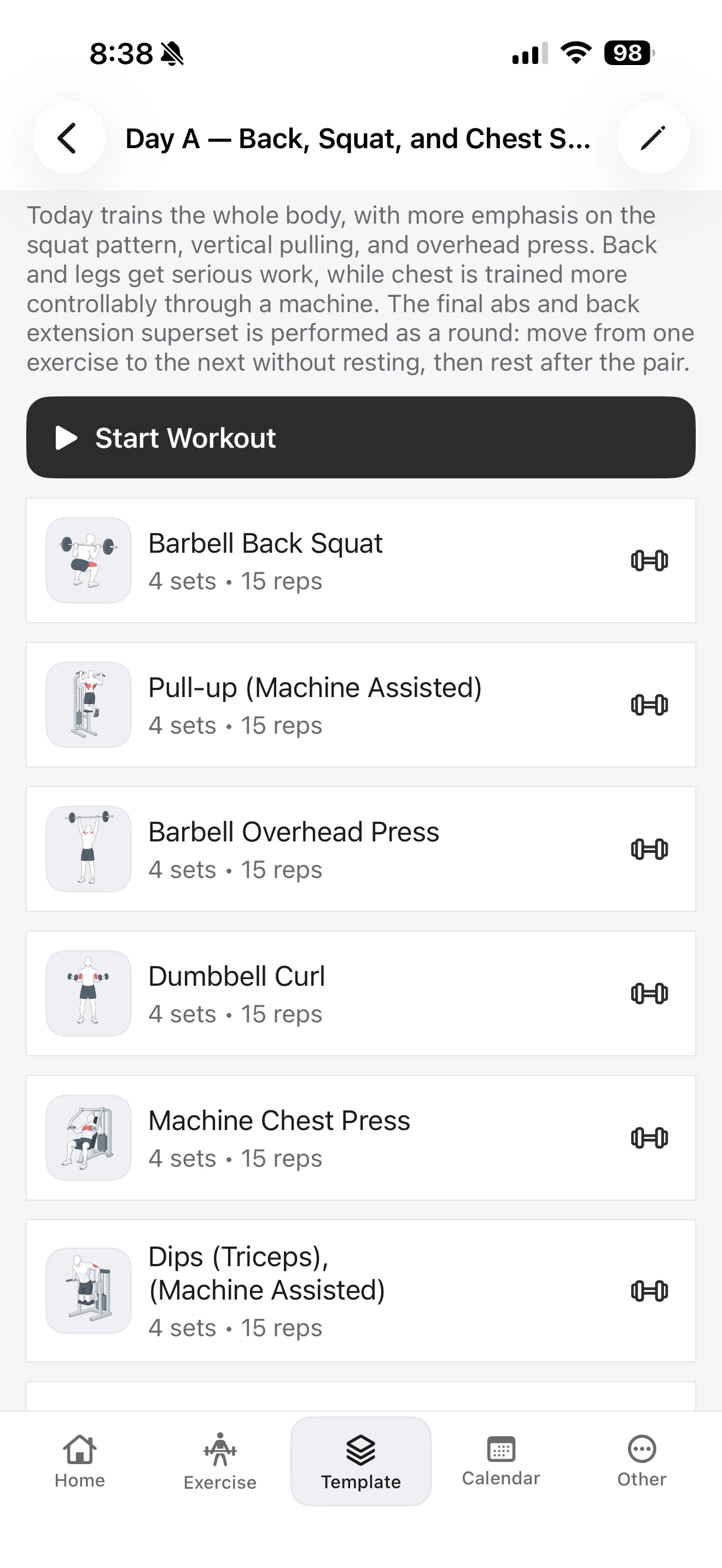
This guide assumes you already know the session you want to run. From Template, open the plan, choose the workout day, and tap Start Workout. You do not need to edit the plan just to begin logging its exercises.
The active workout opens on an exercise with the fields relevant to it. A barbell squat, for example, has reps and load. Other exercises can use different applicable metrics. If the question is what a particular load entry means, use How Load Modes Work in Fitness Karma; if it involves bodyweight or assistance, use How Fitness Karma Tracks Bodyweight, Assisted, and Partial-Bodyweight Exercises. Those are separate decisions from recording the workout itself.
For copying, editing, or hiding a template, see How to Start With a Workout Template in Fitness Karma and Make It Your Own. The useful thing here is simpler: the workout day becomes the place where you can log the work as it happens.
See the first set and the last time you did it
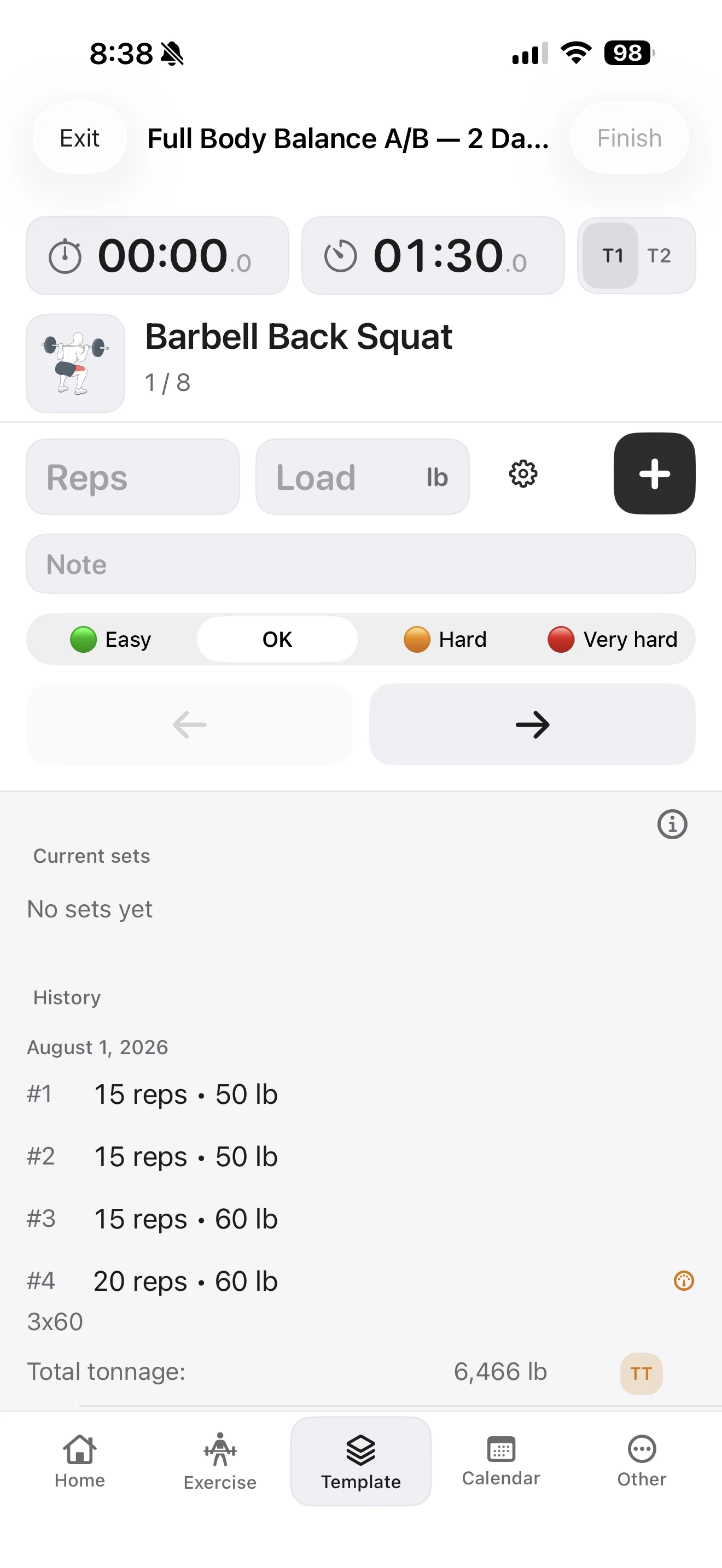
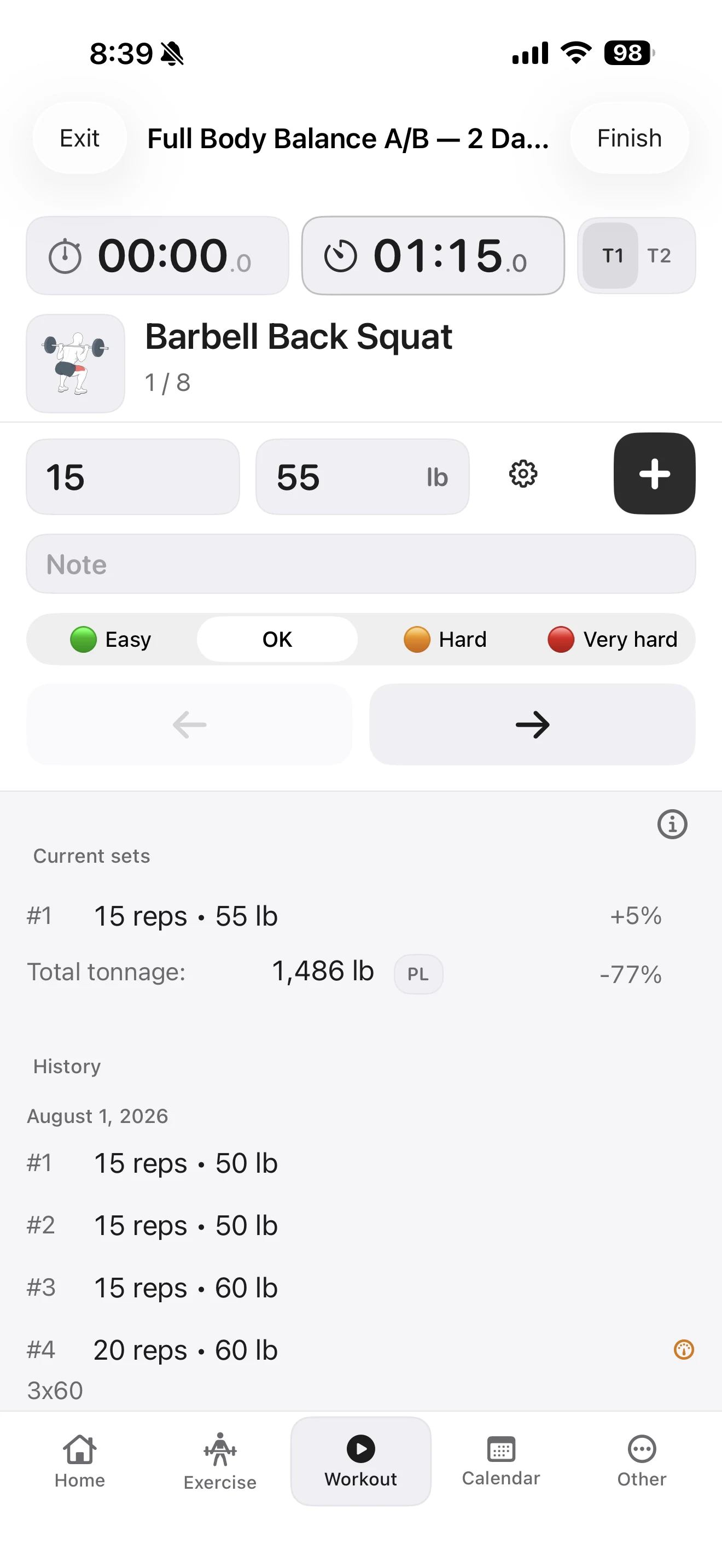
At the beginning of a new workout, Current sets is empty. The history below it can still show the corresponding exercise from a previous finished workout. That gives you a nearby reference without making the old session the new plan.
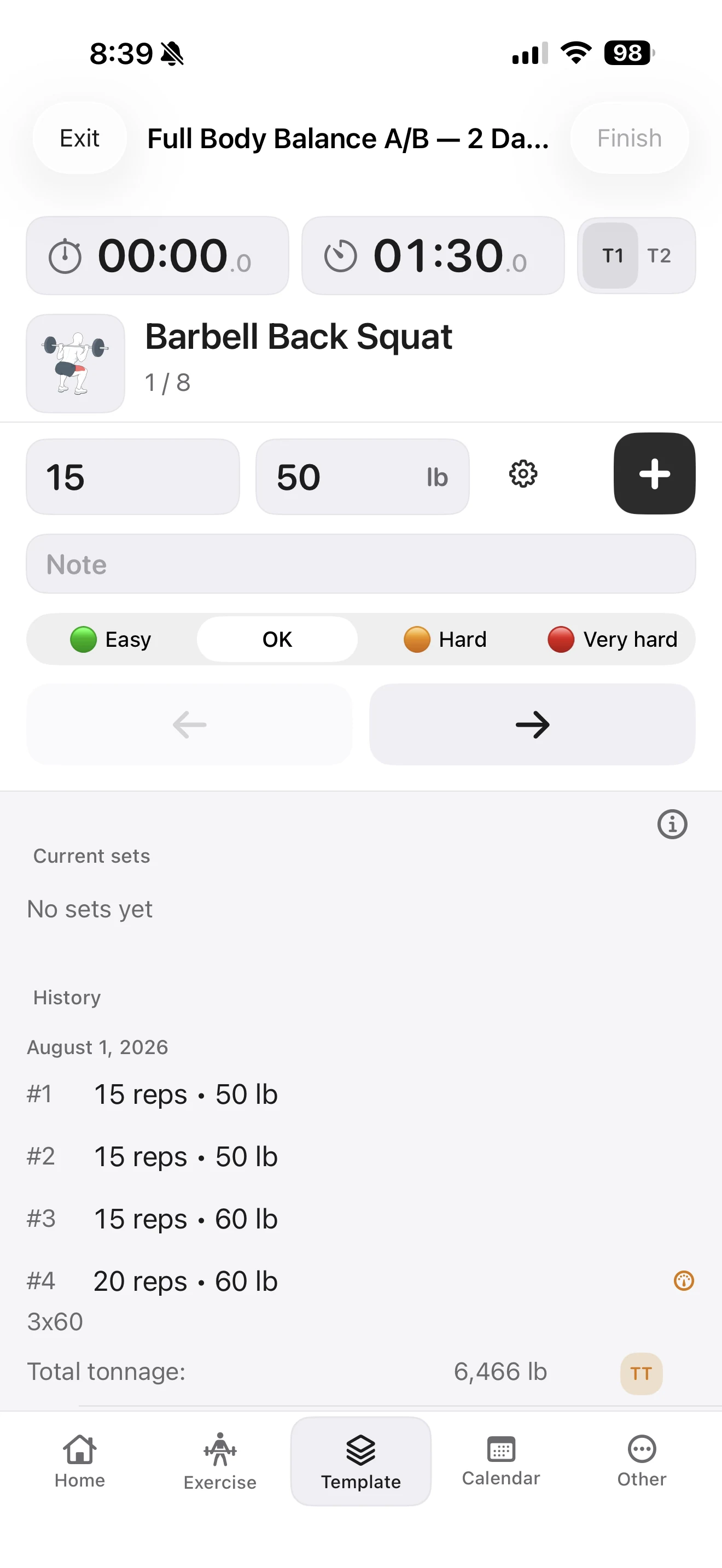
To make the first entry quicker, Fitness Karma first looks for the previous set in the same exercise. If there is not one, it can use the last set from a previous finished workout that included that exercise. The carried-forward information can include the applicable load-entry snapshot, reps, duration, distance, note, and band setting.
That is a starting point, not a prescription. A previous 15 reps · 50 lb can be useful because it saves you from reconstructing the setup, but it is still your decision whether that is what you perform today.
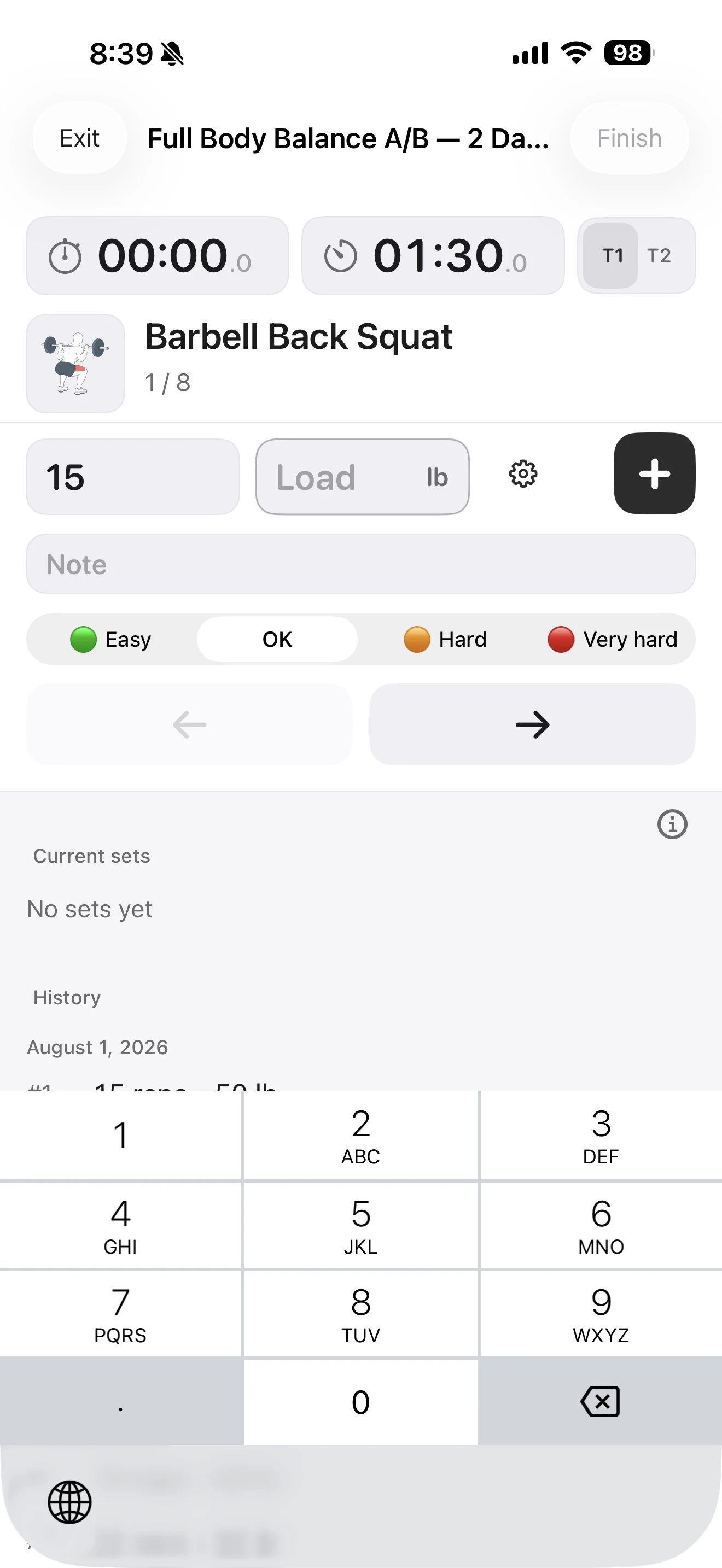
When you tap a numeric field, its old value is selected and cleared for replacement. In this example, tapping the load field leaves it ready for a new number, so entering 55 does not require backspacing through 50 first.
Difficulty deliberately does not carry forward with these defaults. It resets to OK so a set is not labelled as Easy, Hard, or Very hard merely because a past set was.
Log the completed set, then use your rest cue
After you complete the set, tap the + button to record it. The set moves into Current sets, and the active fields are ready for what comes next. In the example below, the new 15 reps · 55 lb set is visible while the selected rest timer is already running.
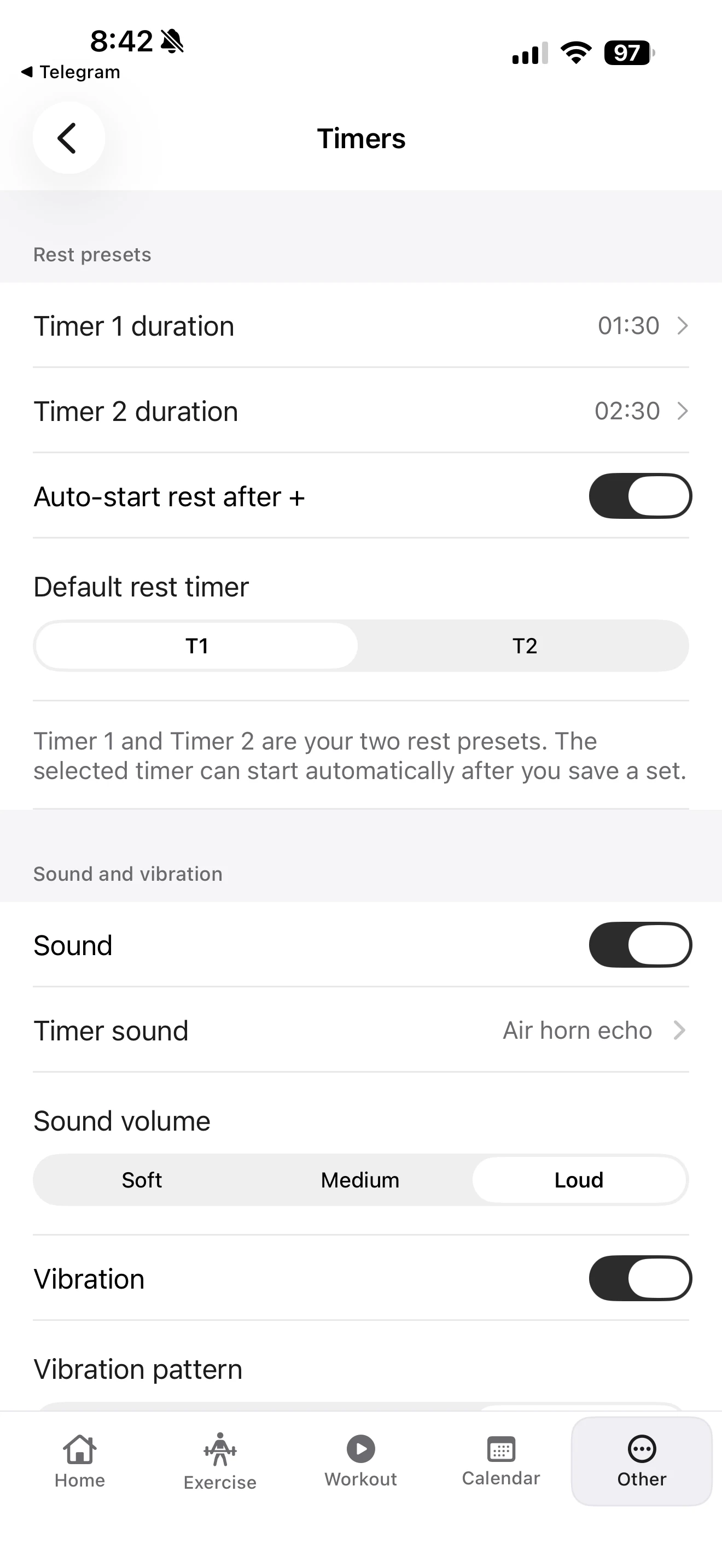
Auto-start is optional. When it is enabled, recording a set is the event that can start the selected rest timer. Merely moving to another exercise does not stop the countdown. The timer uses a target time and reconciles when you return to the app; it is not a durable in-app timer service if the app is terminated.
Fitness Karma provides two rest presets for the current session. You choose their durations and select one of them; they are not separate rest recommendations attached to each template or exercise. In the example, Timer 1 is 1:30 and Timer 2 is 2:30. The same screen also lets you choose feedback such as sound and vibration.
The timer is there to make a rest period easier to notice, not to say what your rest period should be. If feedback is enabled and the relevant permission is granted, the app can use local notification feedback; that does not turn the timer into coaching advice.
A superset waits for the pair
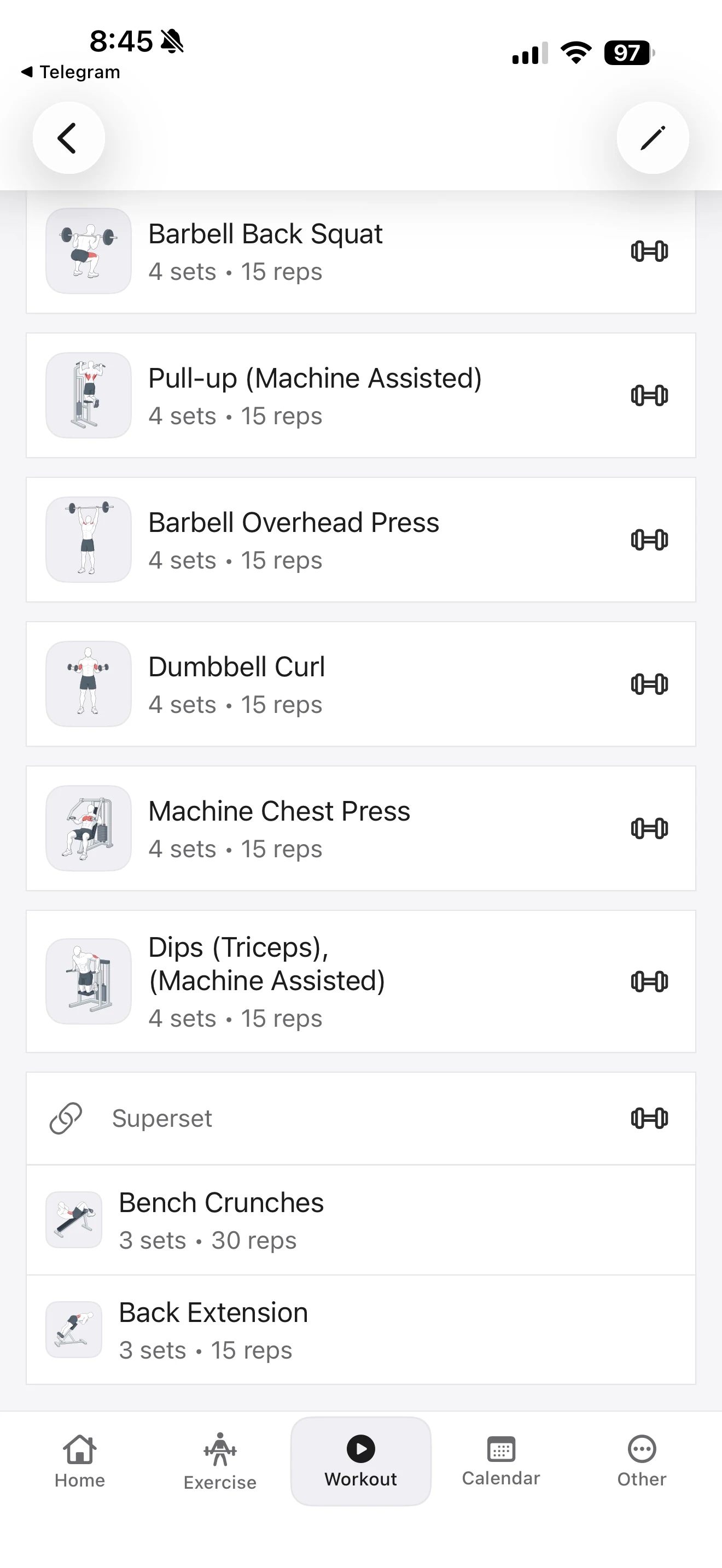
Some workout days group two exercises as a Superset. The intention is to move from the first exercise to the second without resting between them, then rest after the pair. When Auto-start Rest is enabled, the timer starts after the superset cycle wraps, not after the first exercise alone.
That is a workflow rule, not a suggested rest strategy. The selected timer remains your own session-level cue.
Save the detail future-you will actually recognise
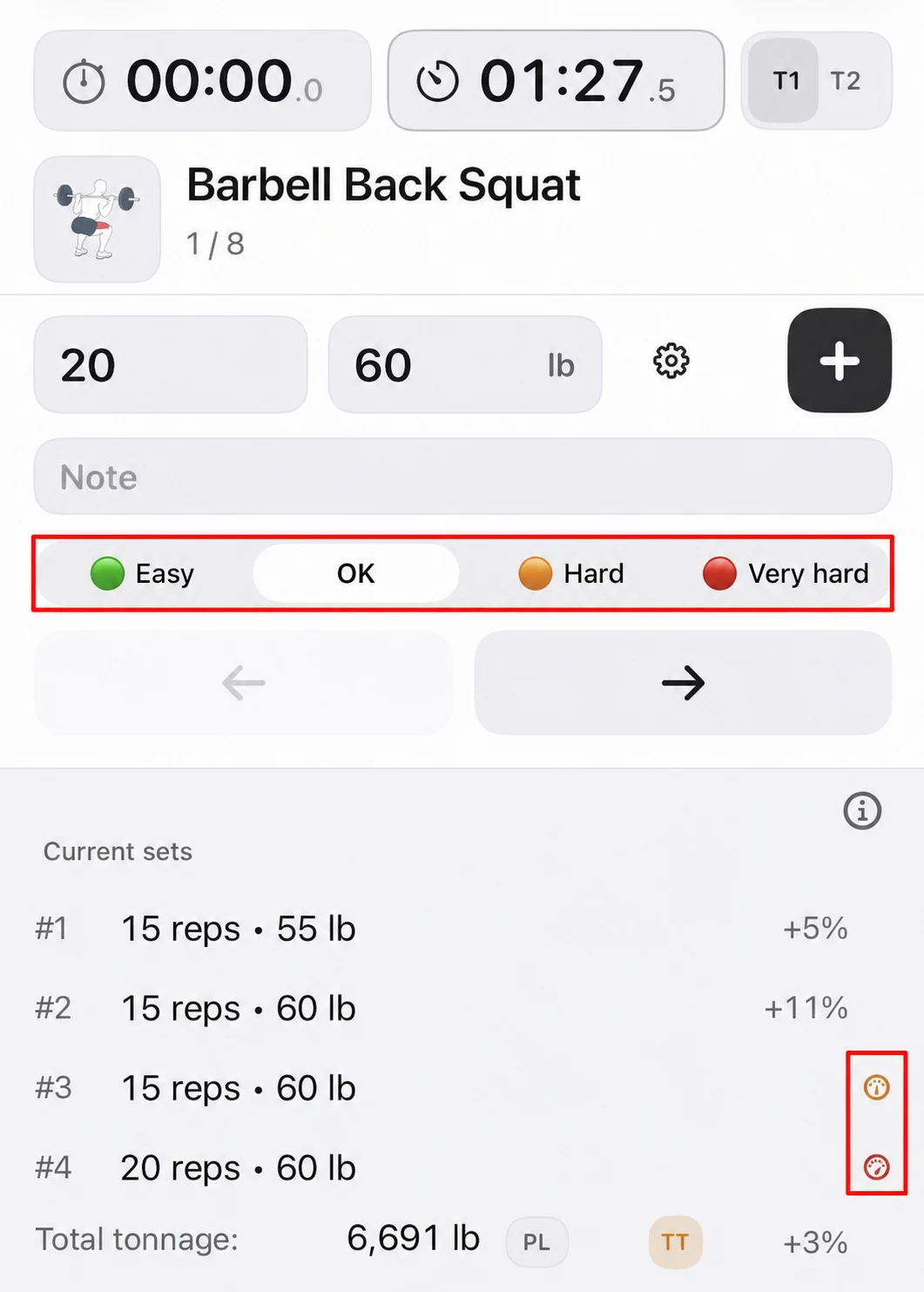
The set input includes a Note field and four difficulty labels: Easy, OK, Hard, and Very hard. A short note can preserve the detail that a number alone cannot: for example, that grip slipped on the final repetitions or a setup felt different. Use it for context you want to see next time, not as a substitute for medical or training advice.
Difficulty can be just as simple. A set may meet the planned reps and still feel Very hard. Fitness Karma keeps that label with the current workout and the history record, but it does not aggregate difficulty into a recovery, readiness, or training-quality score.
Correct a set without starting the exercise again
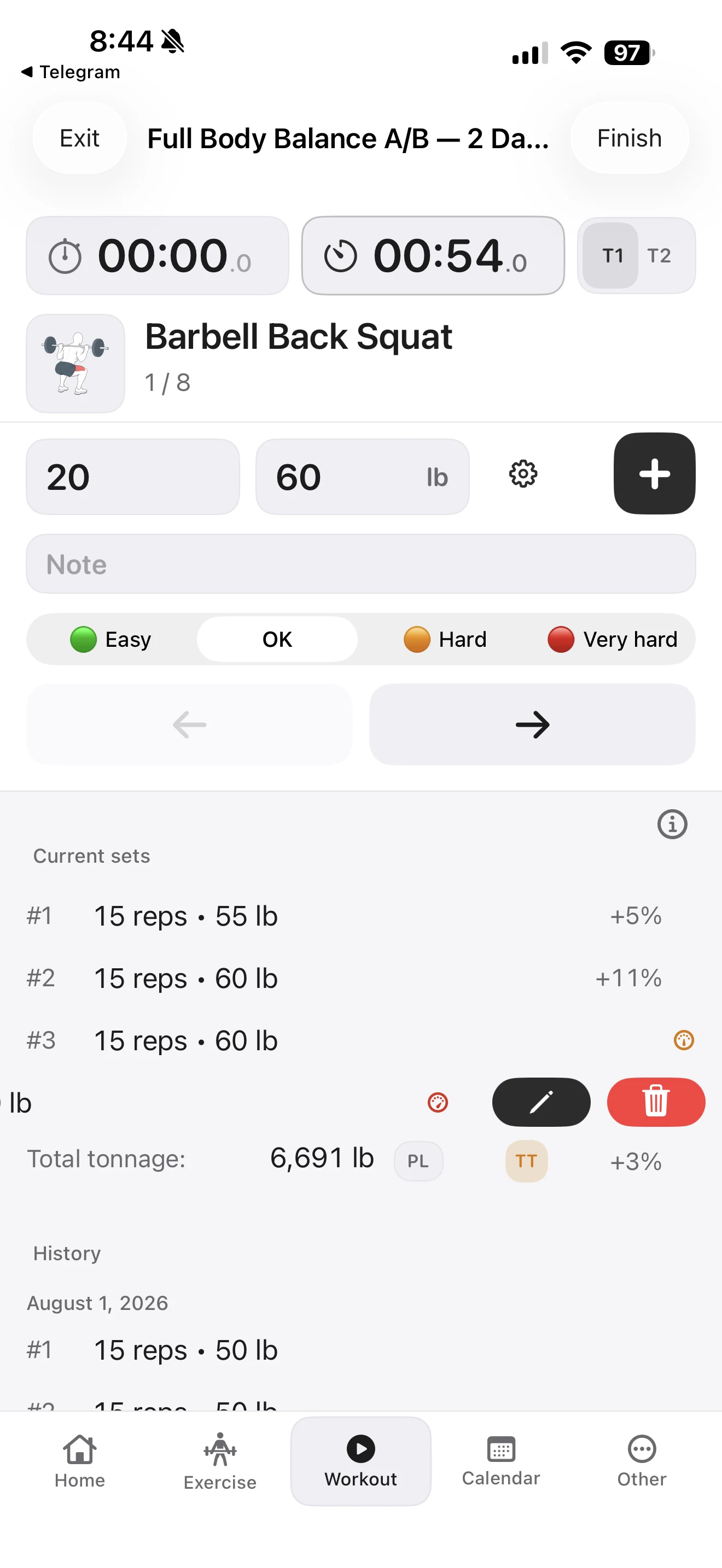
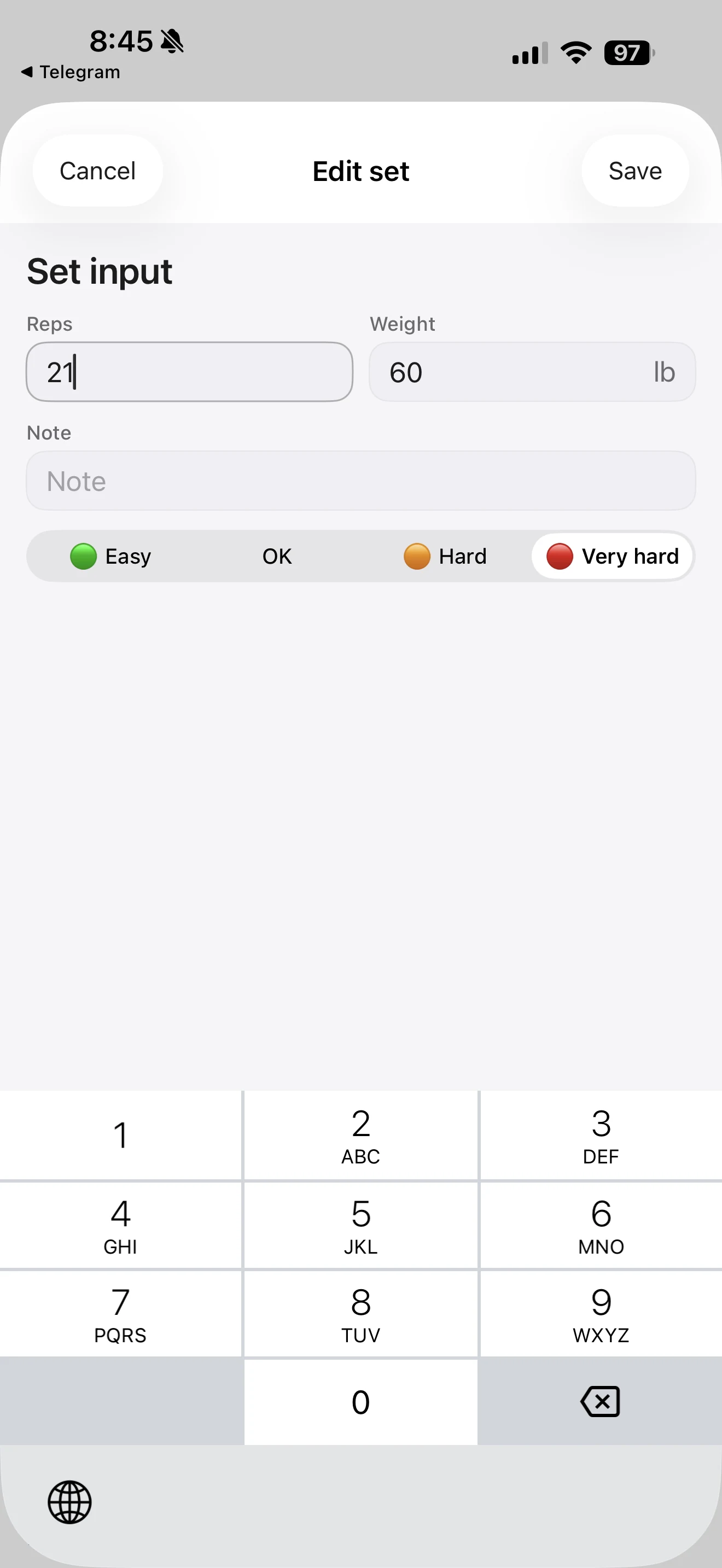
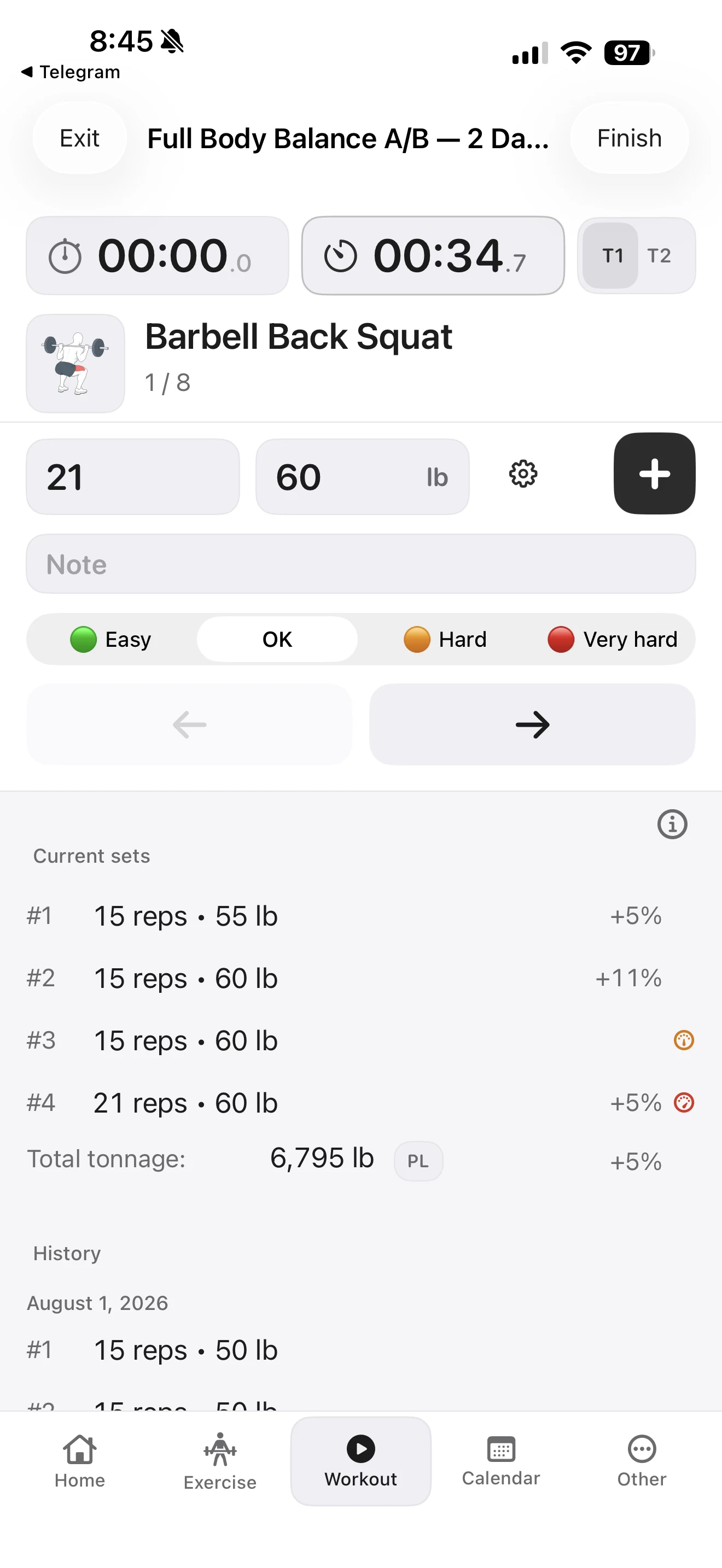
If you notice a mistake while the workout is still active, swipe the recorded set to reveal the edit and delete actions. This is useful for small corrections, such as noticing that you logged 20 reps instead of 21.
Open the edit form, change the value that was wrong, and save. The current-workout list then reflects the corrected record, including its difficulty label.
When you are finished, the active workout has the information you need for later review: the sets you logged, their context, and the history they can be compared with. For that next step, see How to Track Progress With Workout History, PRs, and Calendar. If the concern is protecting or restoring those records, see How to Back Up and Restore Workout History.
The point of the log is to leave more attention for the workout itself. Start the day, record the set you completed, keep the context worth remembering, and let the rest of the session stay simple.