
An article from Fitness Karma
How to Create a Workout Template in Fitness Karma
Create a reusable workout template in Fitness Karma: add days and exercises, set reps, build supersets, then copy or hide ready-made templates.
When a workout has a structure you want to repeat, rebuilding it from a blank screen every time is needless work. A workout template gives you a reusable starting point: the days, exercises, order, supersets, and rep targets you want to see before you begin.
This guide creates a small two-day example called Arms Practice. It is only an example of how to use the editor, not a prescription for arm training or a claim that these sets and reps are right for everyone. Once you understand the flow, the same steps work for a single workout list, a larger gym workout routine template, or a program you already follow.
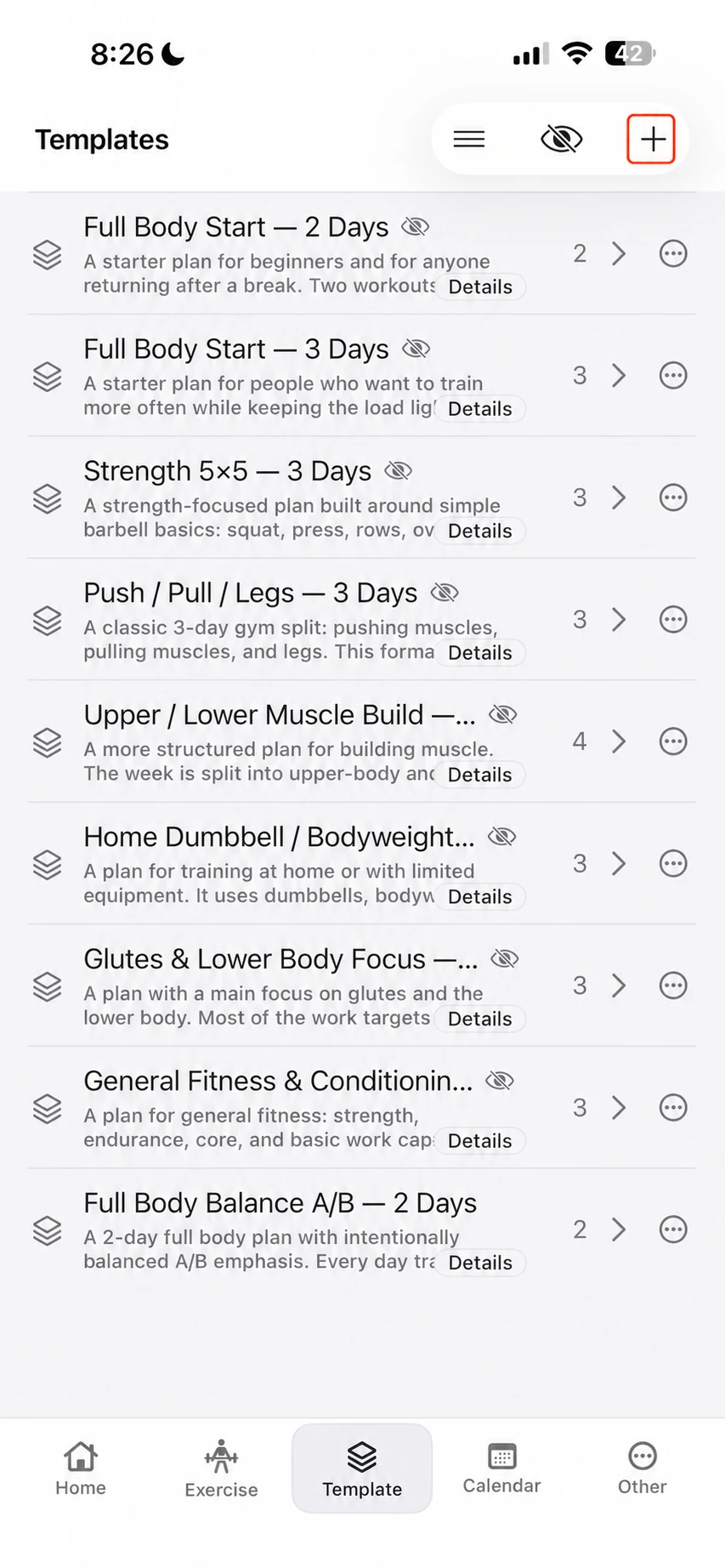
Fitness Karma also includes nine system templates—full body, strength, push/pull/legs, upper/lower, home, lower-body, general-fitness, and Full Body Balance A/B options. We will return to those later. First, it helps to see how to make a reusable workout plan from scratch.
Choose a name and decide whether you need one day or several
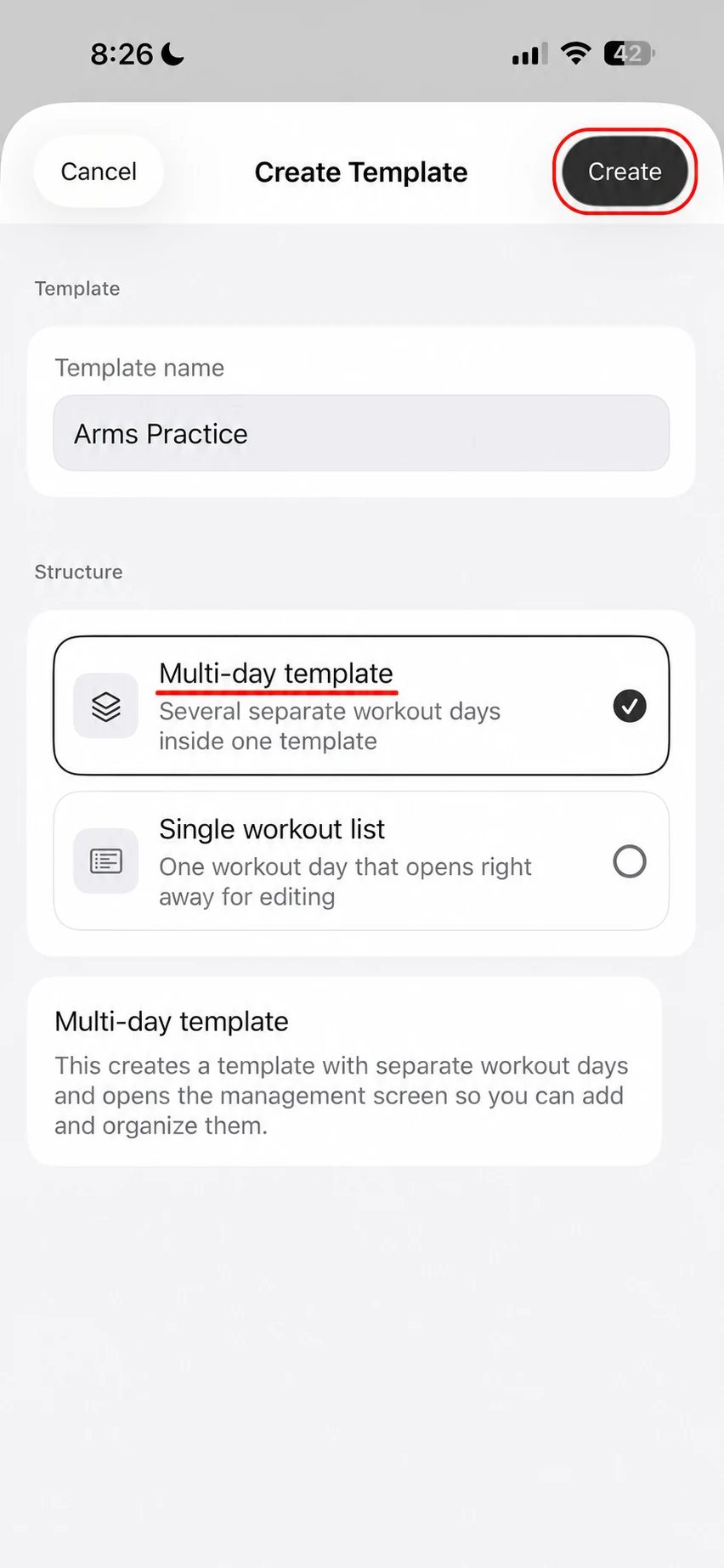
Open Templates and tap the + button. The first choice is the template name and its structure. A Single workout list opens one day for editing straight away. Choose Multi-day template when you want separate days inside the same template—for example, Day A and Day B, or a three-day split.
For this example, enter Arms Practice and choose Multi-day template. A short description is optional. It can be useful for the future version of you who has forgotten why the template exists, but it is not required to create it. Once the name is present, Create becomes available.
Create the days before filling them
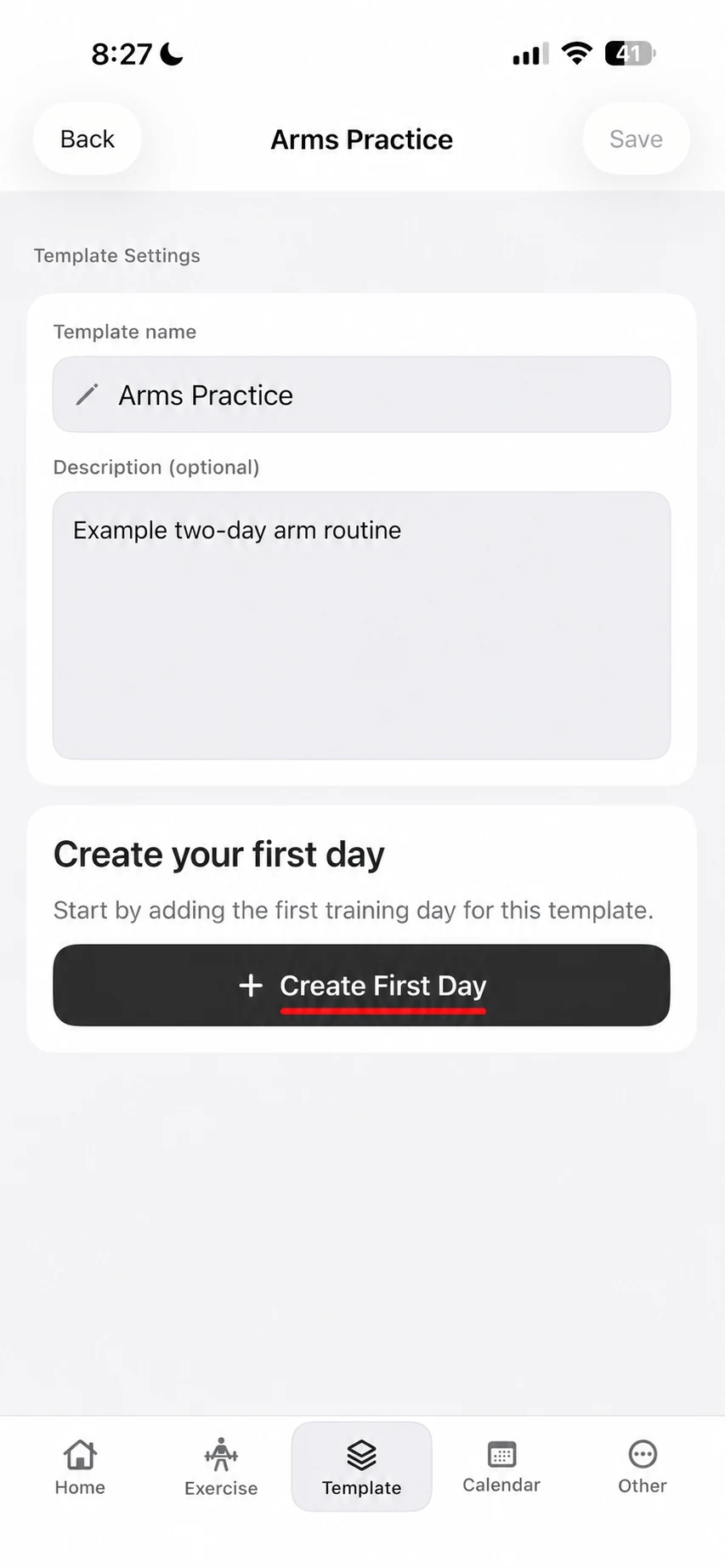
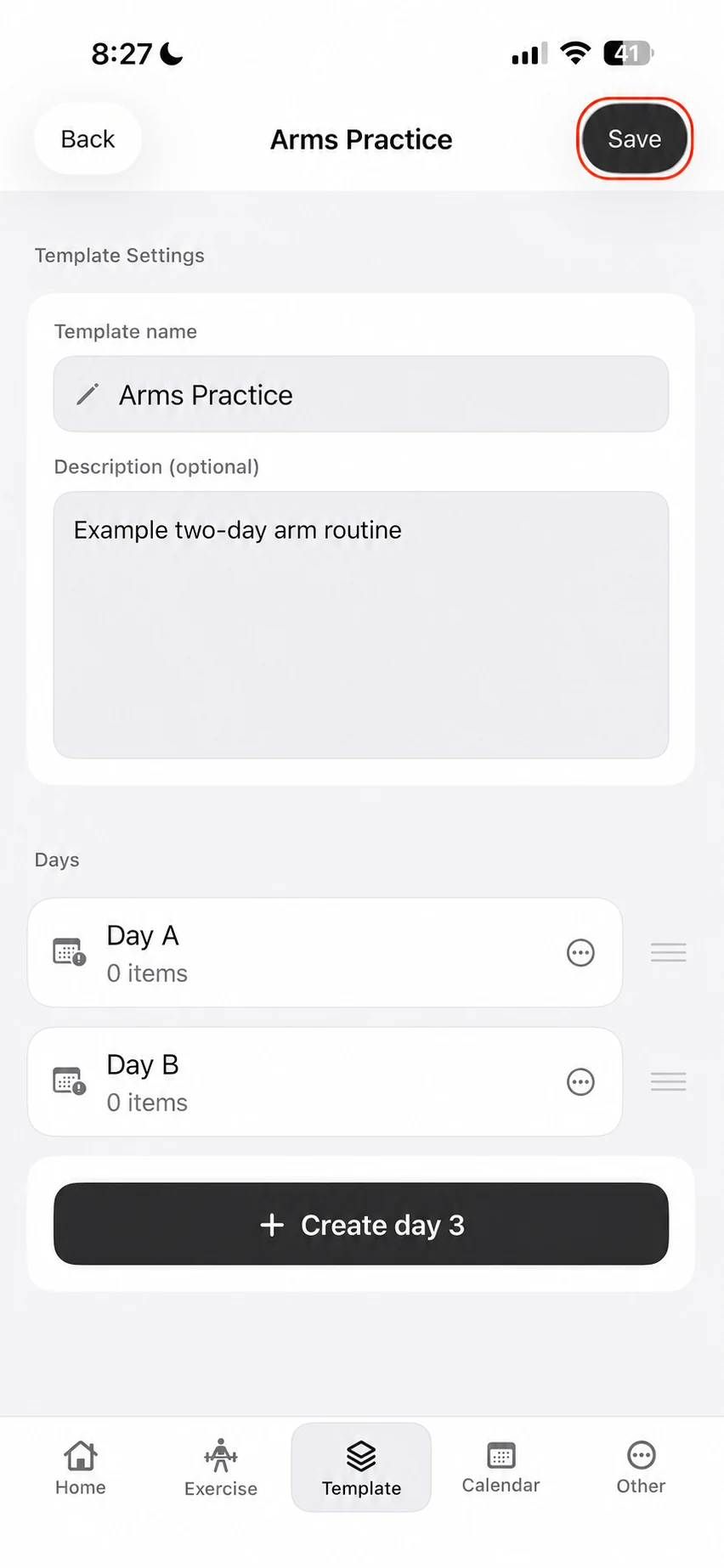
After you tap Create, Fitness Karma opens the template settings screen. You can still change the template name and add or revise the optional description here. The useful next step is simply to create the empty day containers first.
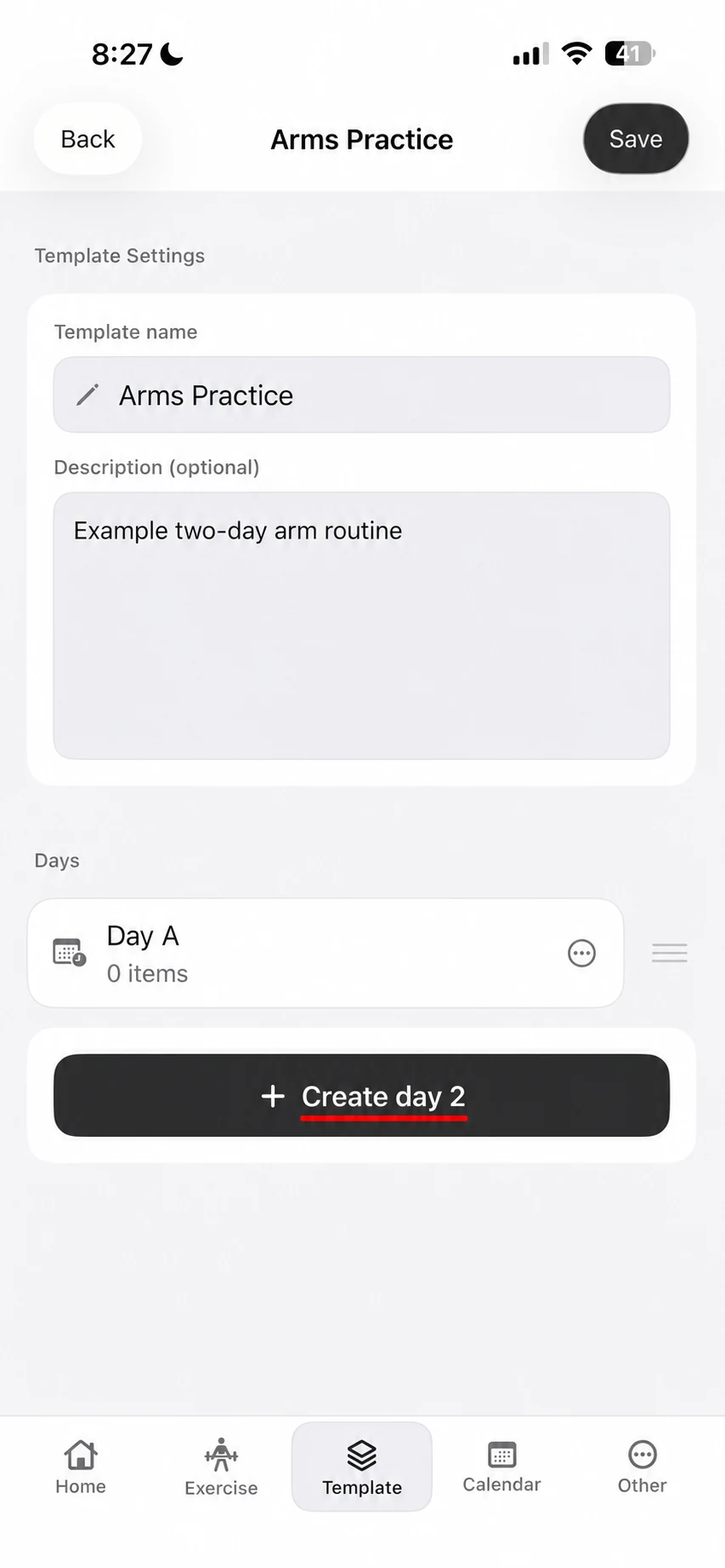
Tap Create First Day. With Day A in place, the same screen offers Create day 2. You do not have to decide every exercise before creating the second day. Build the outline first, then fill each day one at a time. If your plan needs more days, repeat that same action; the example stops at two only to keep the workflow easy to follow.
When both days are listed, tap Save in the upper-right corner. Saving at this point is useful if you want to build the details later: the two-day structure already exists, and you can return to it from the library rather than starting again.
Fill Day A with several exercises at once
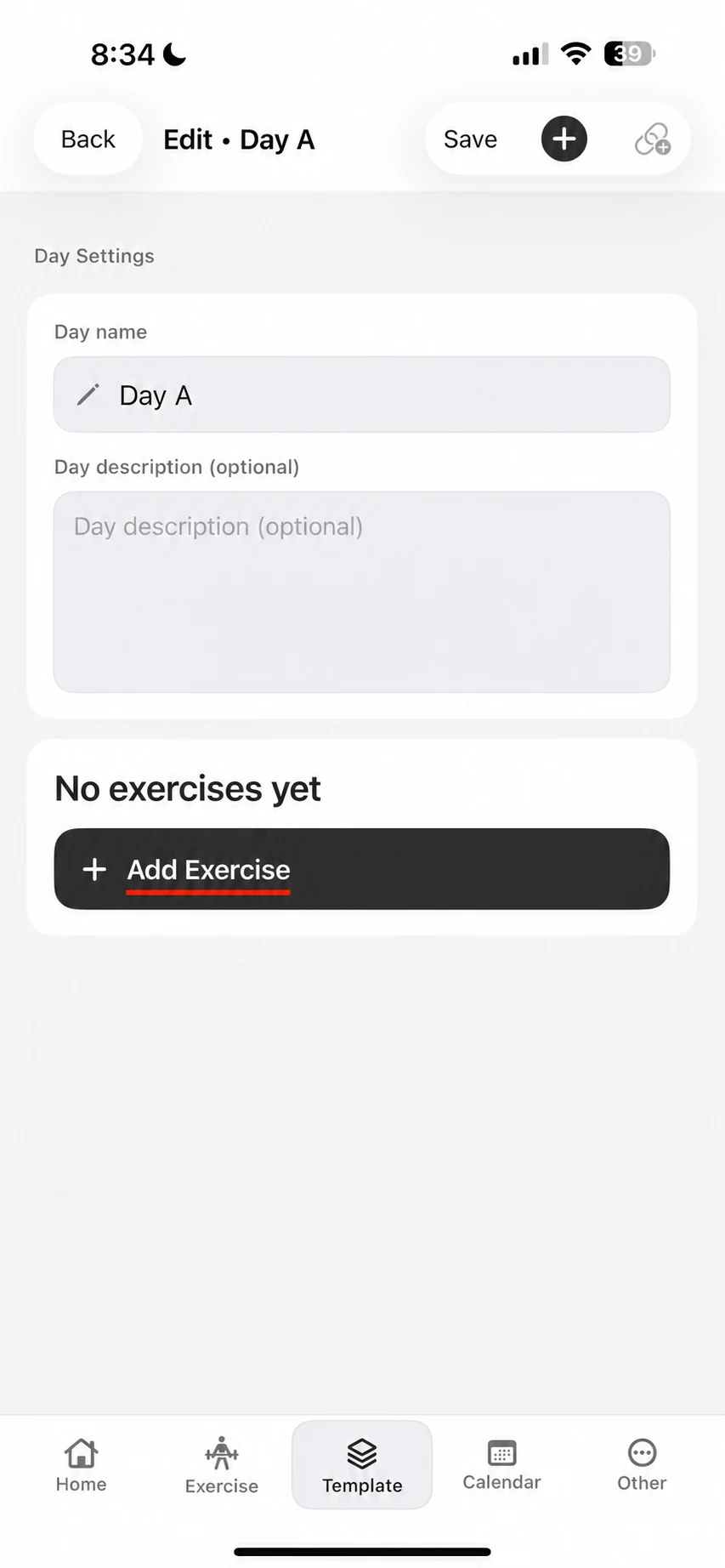
Open Day A, then use the pencil to enter its editor. A day can have its own optional description, but you can leave it blank. Tap Add Exercise to choose what belongs in the day.
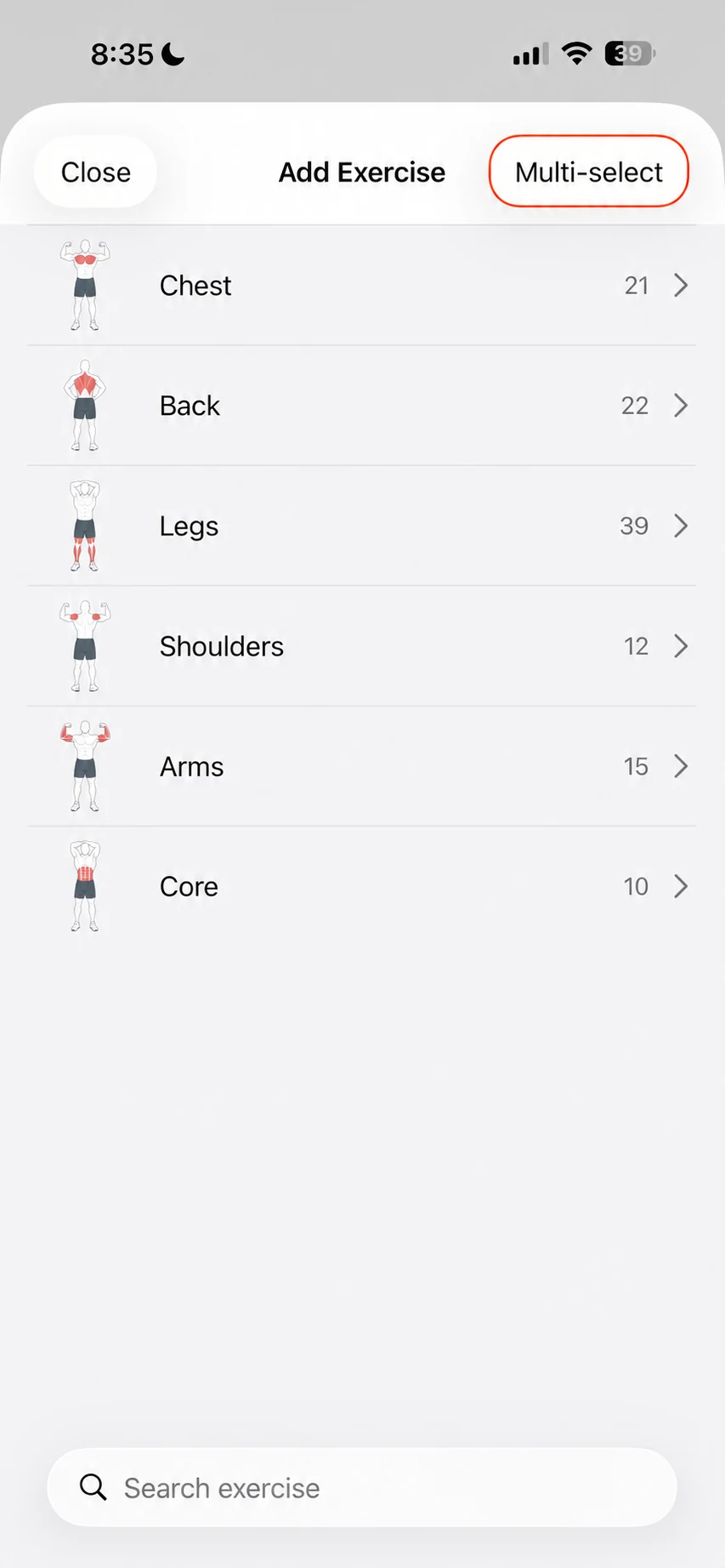
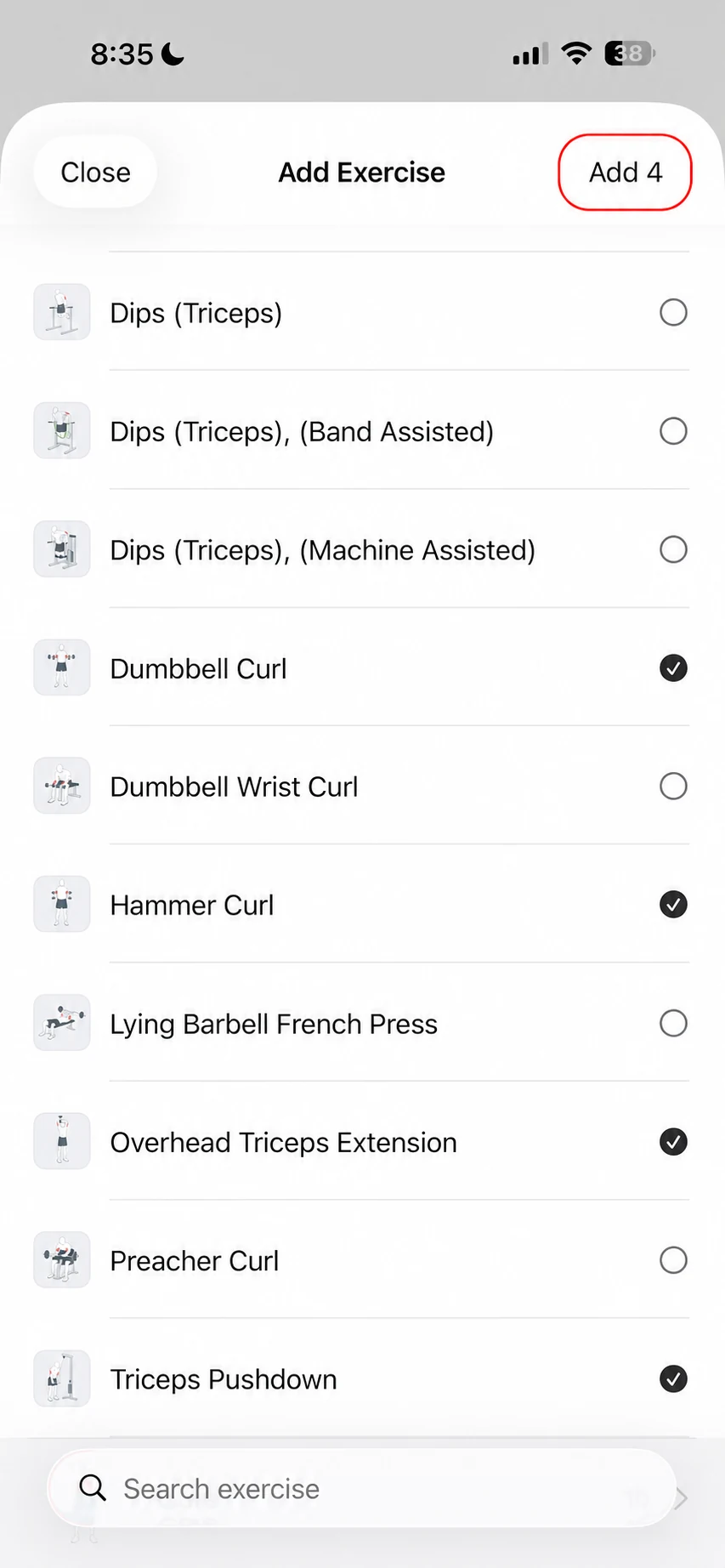
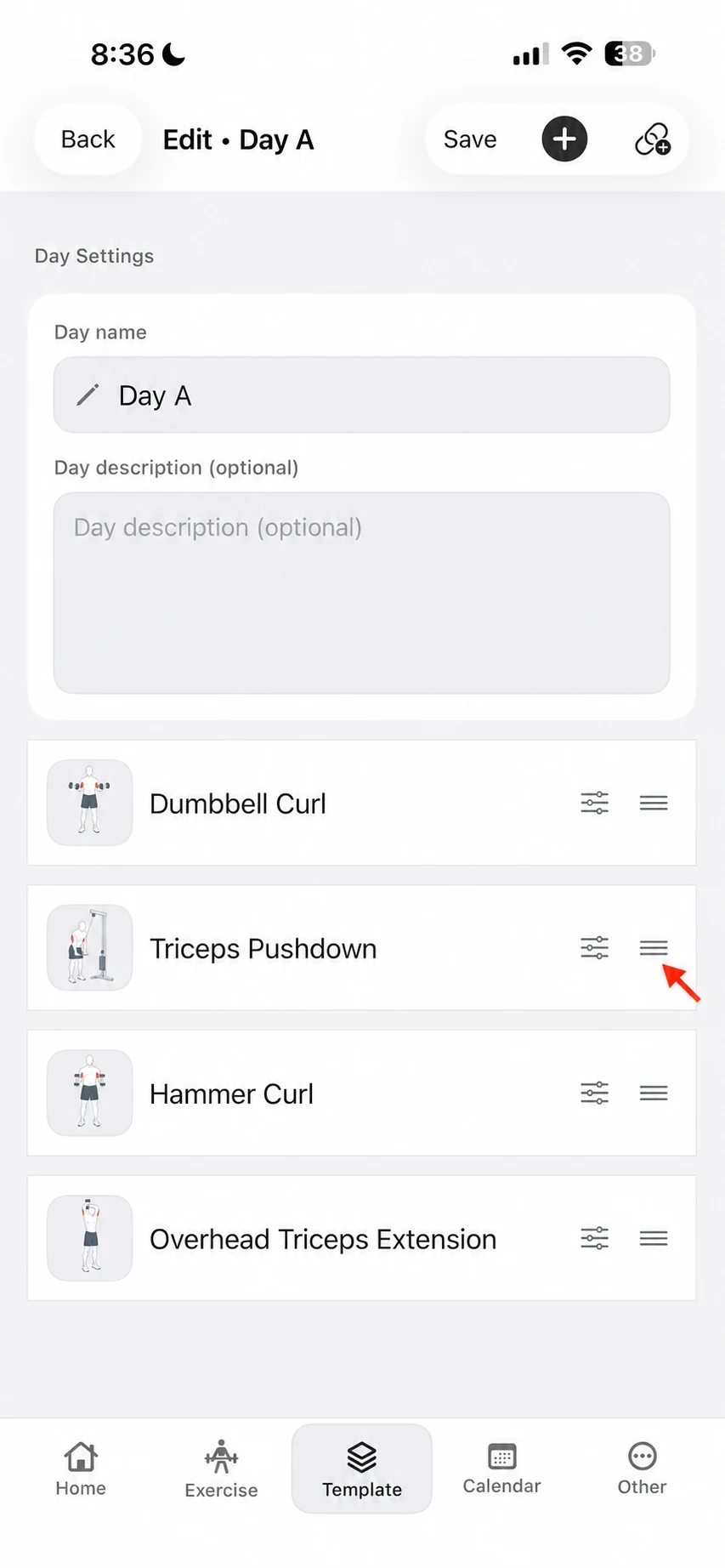
The exercise picker can work one item at a time, but Multi-select is faster when you already know the group you want. In the example, select four exercises: Dumbbell Curl, Triceps Pushdown, Hammer Curl, and Overhead Triceps Extension. The button changes to Add 4, which makes the choice explicit before anything is added.
Put the exercises in the order you want to use them
After adding exercises, their first order may not be the order you want to follow in the gym. Drag the three-line handle at the right of an exercise to move it. For this example, keep Dumbbell Curl and Triceps Pushdown as individual exercises first, then place Hammer Curl and Overhead Triceps Extension together for the superset created in the next step.
This ordering is about clarity, not physiology. The template should read in the sequence that makes sense to you when you open it to train.
Add simple rep targets or a rep scheme
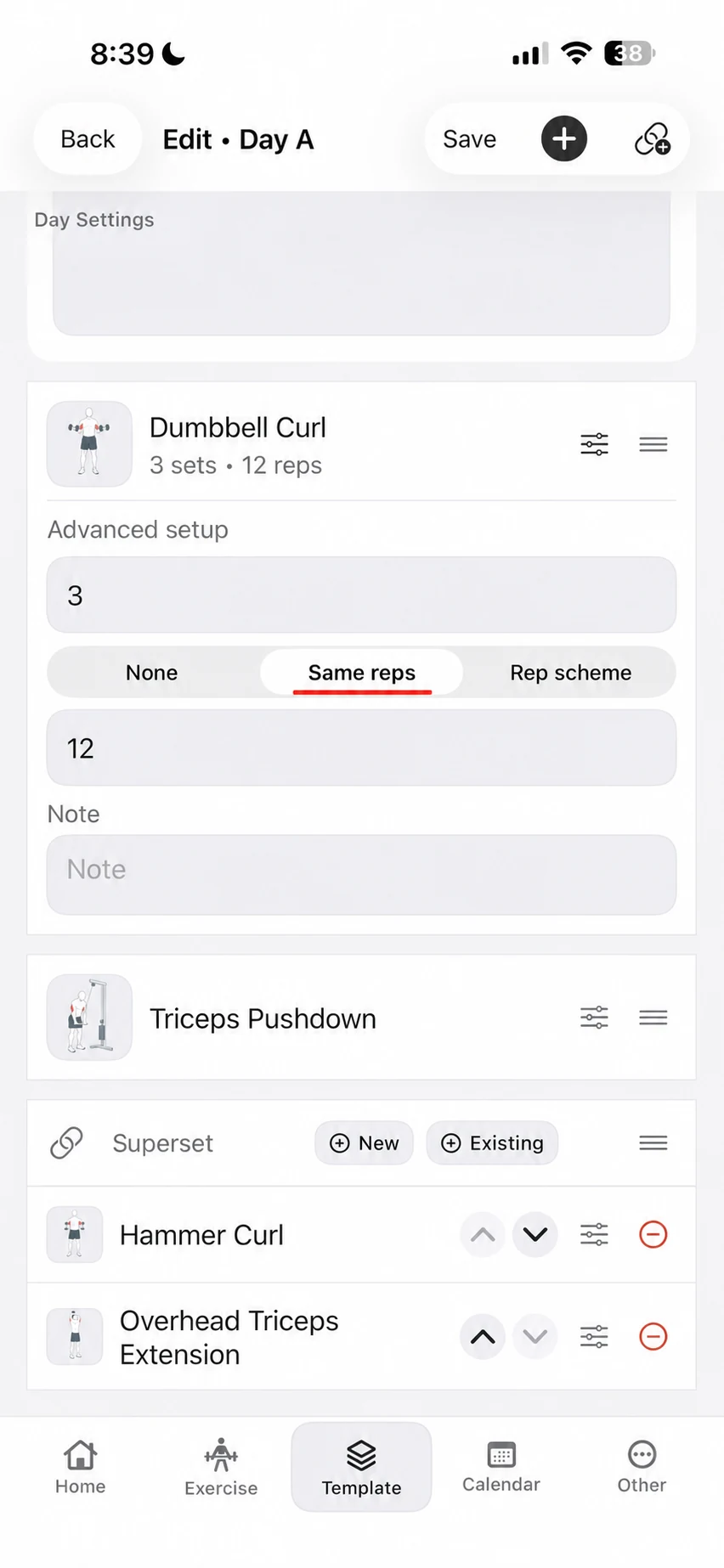
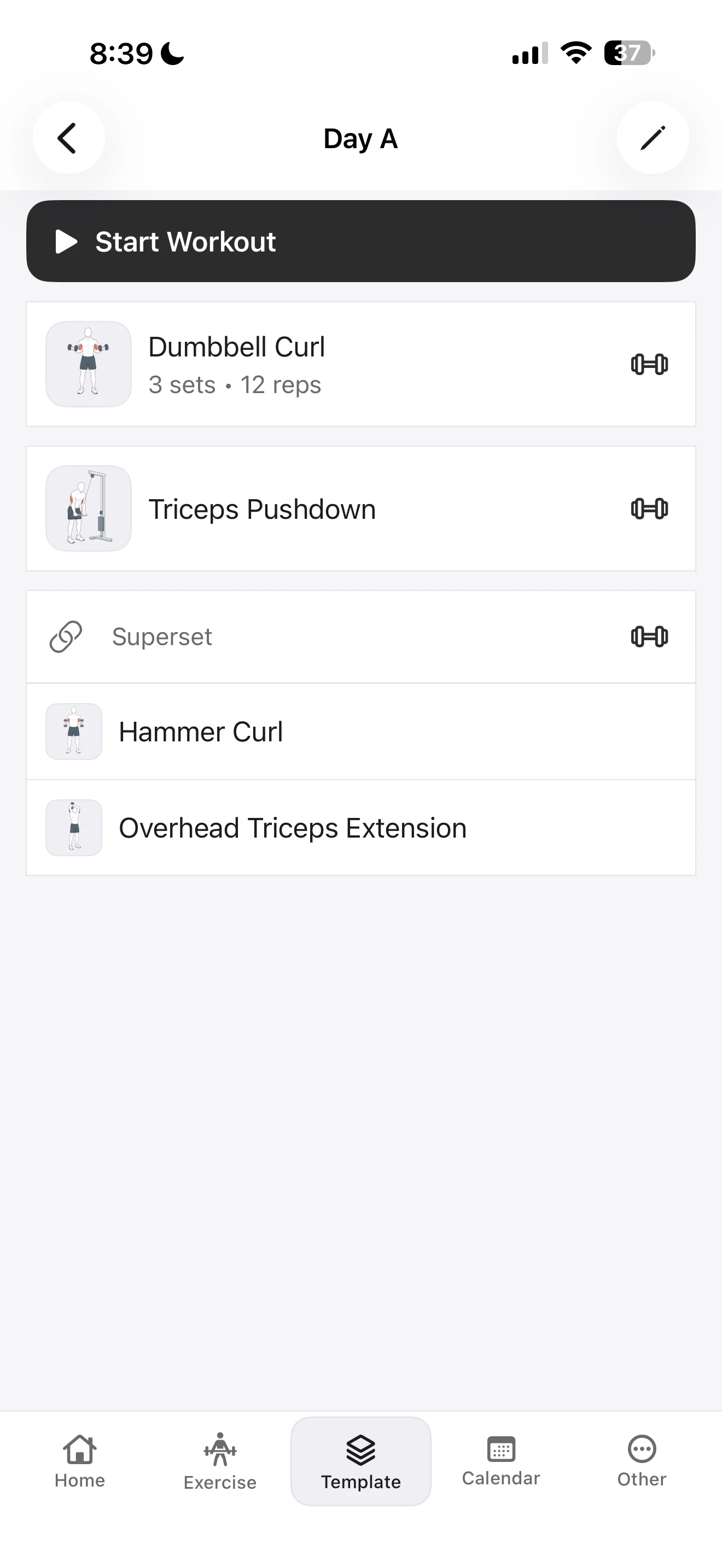
A template can save the rep structure you want as a reminder. Tap the sliders beside an exercise to open Advanced setup. For Dumbbell Curl, the example uses three sets with Same reps set to 12, displayed later as 3 sets • 12 reps.
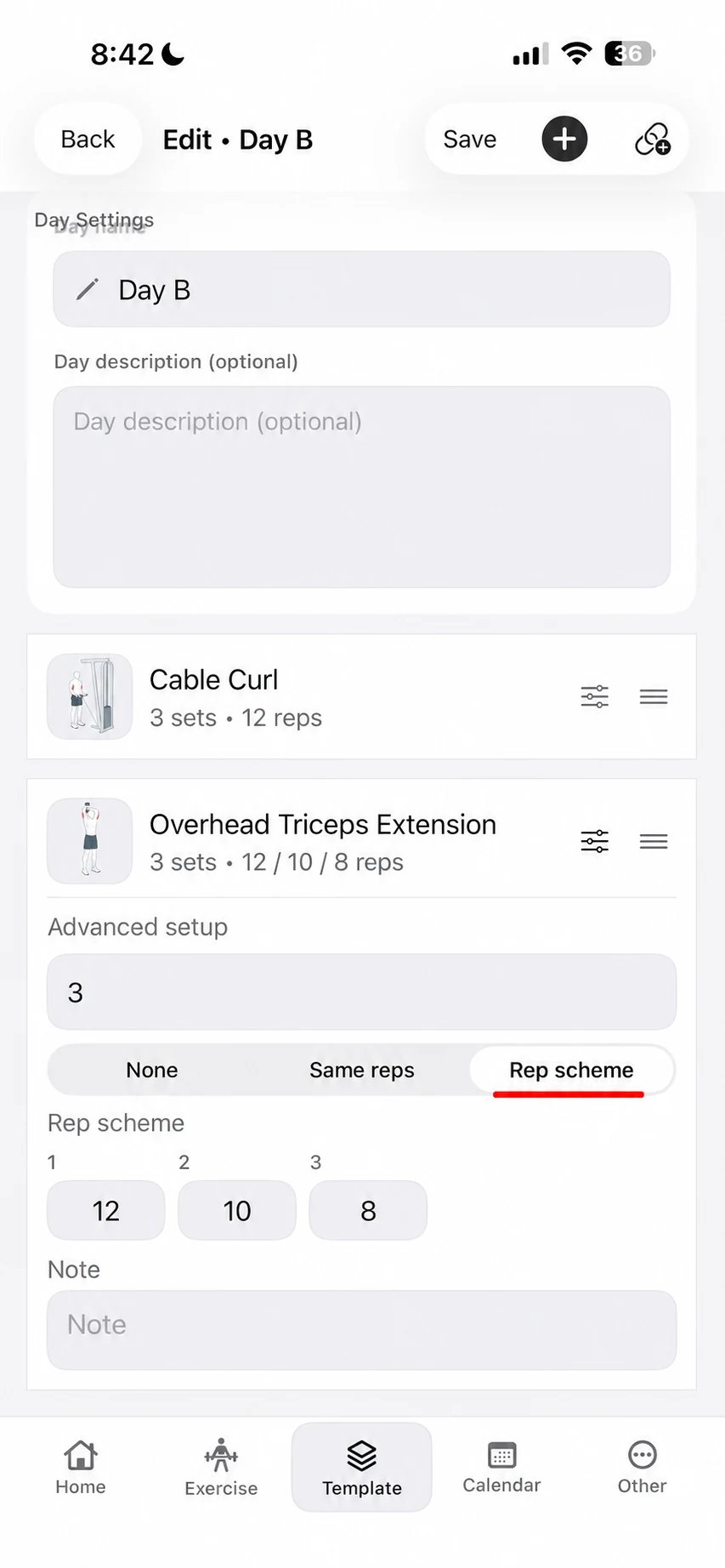
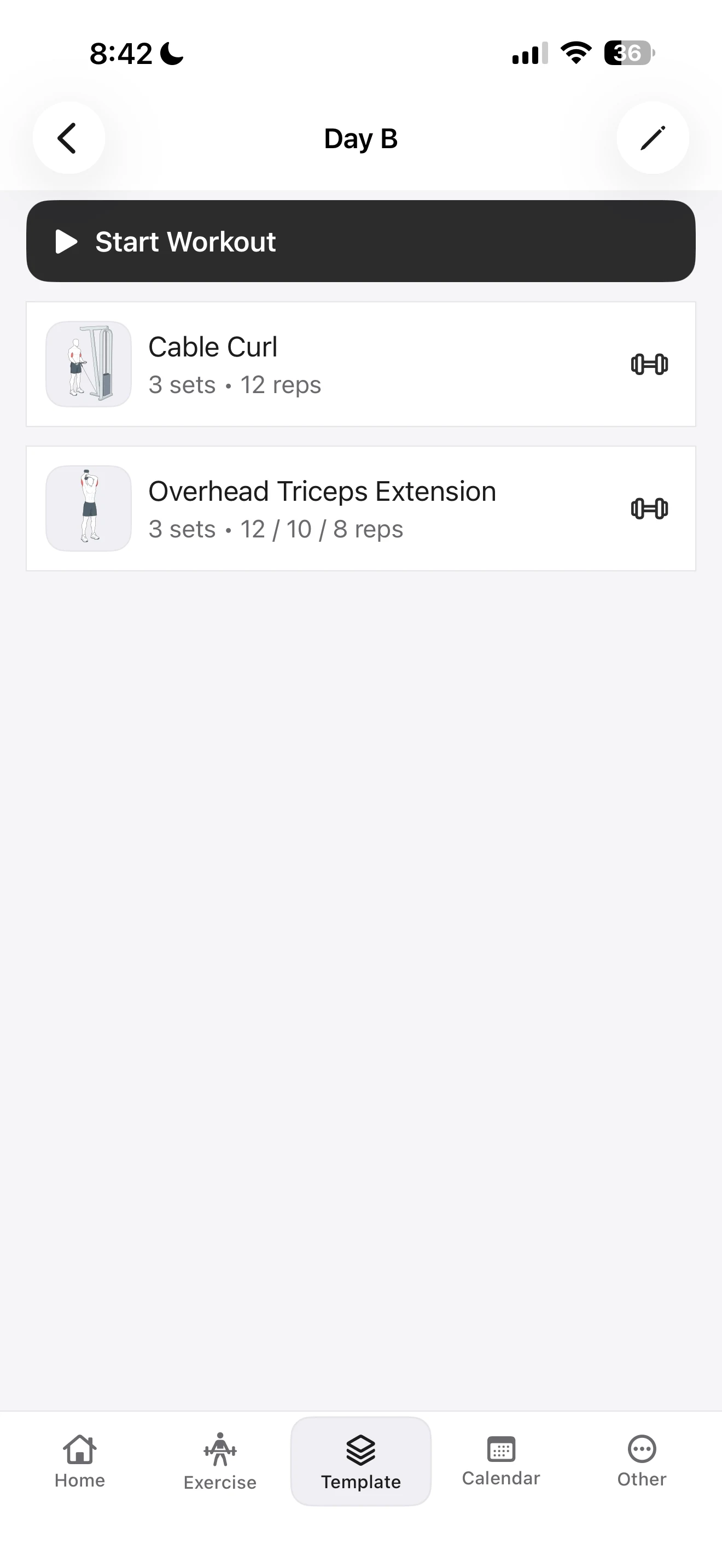
Use Rep scheme when the target changes from set to set. In Day B, Overhead Triceps Extension uses three sets at 12, 10, and 8 reps. Fitness Karma shows that difference directly in the template as 3 sets • 12 / 10 / 8 reps. You can also leave the rep setup empty when you do not want the template to suggest a number.
These are plan notes, not automatically chosen working weights or advice about how hard you should train. You still decide the weight, execution, and whether the plan suits you when you work out.
Build a superset without losing control of the exercises
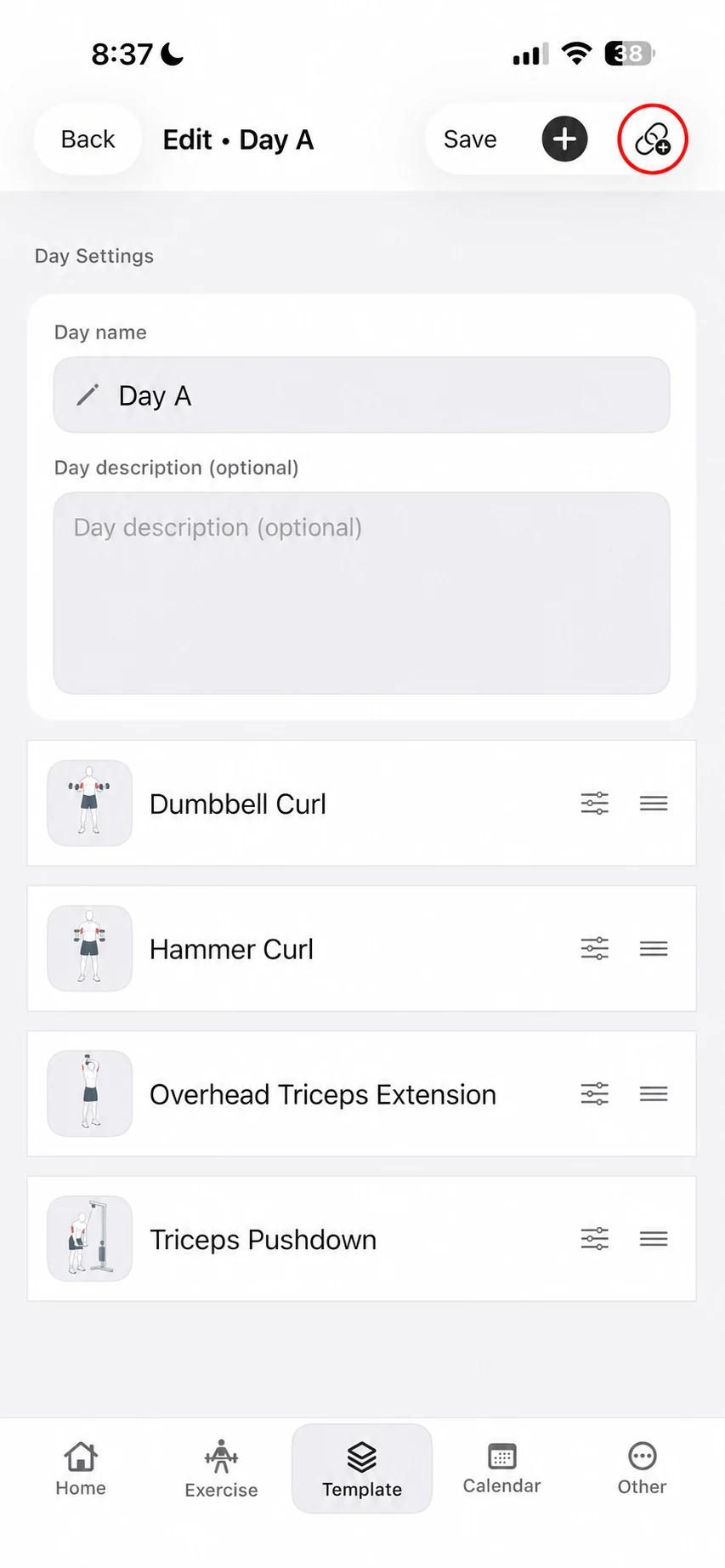
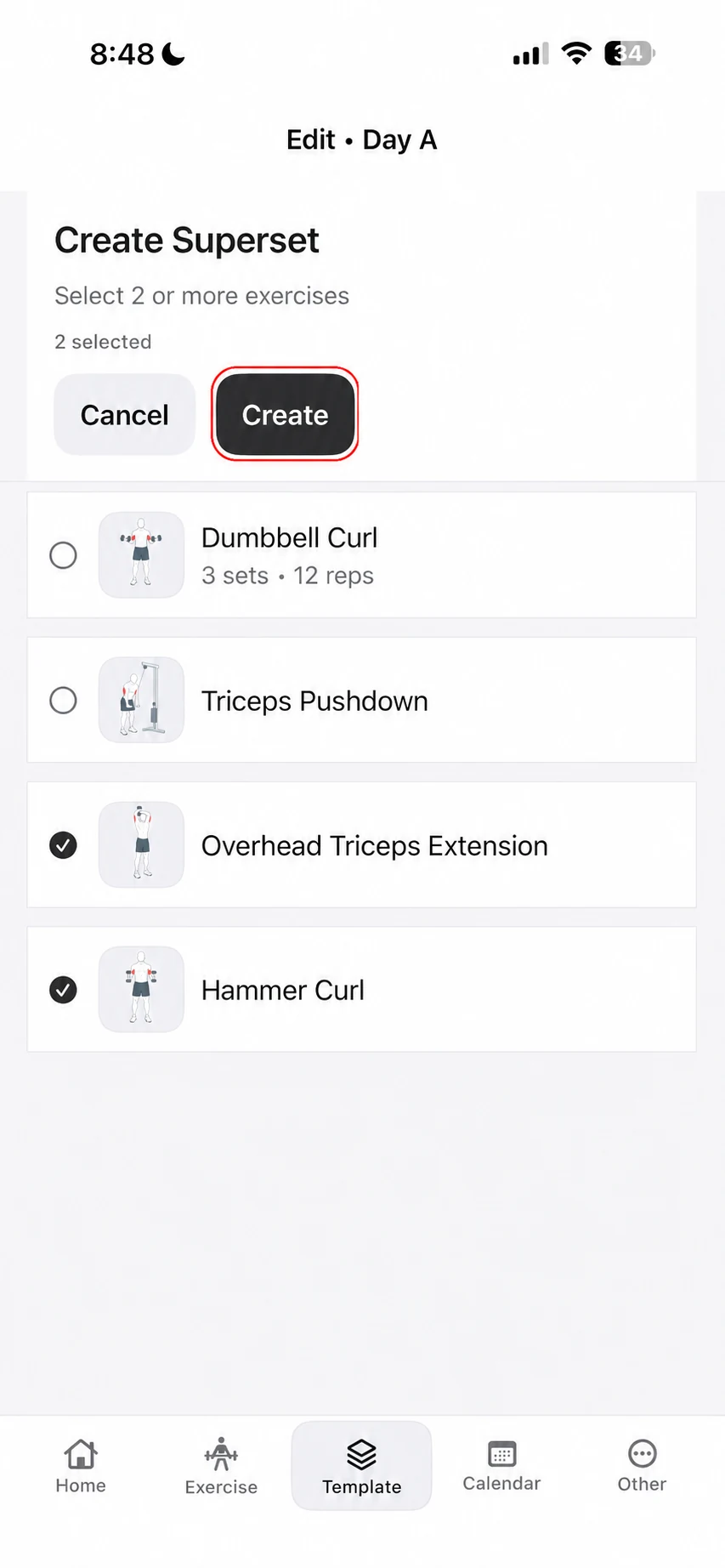
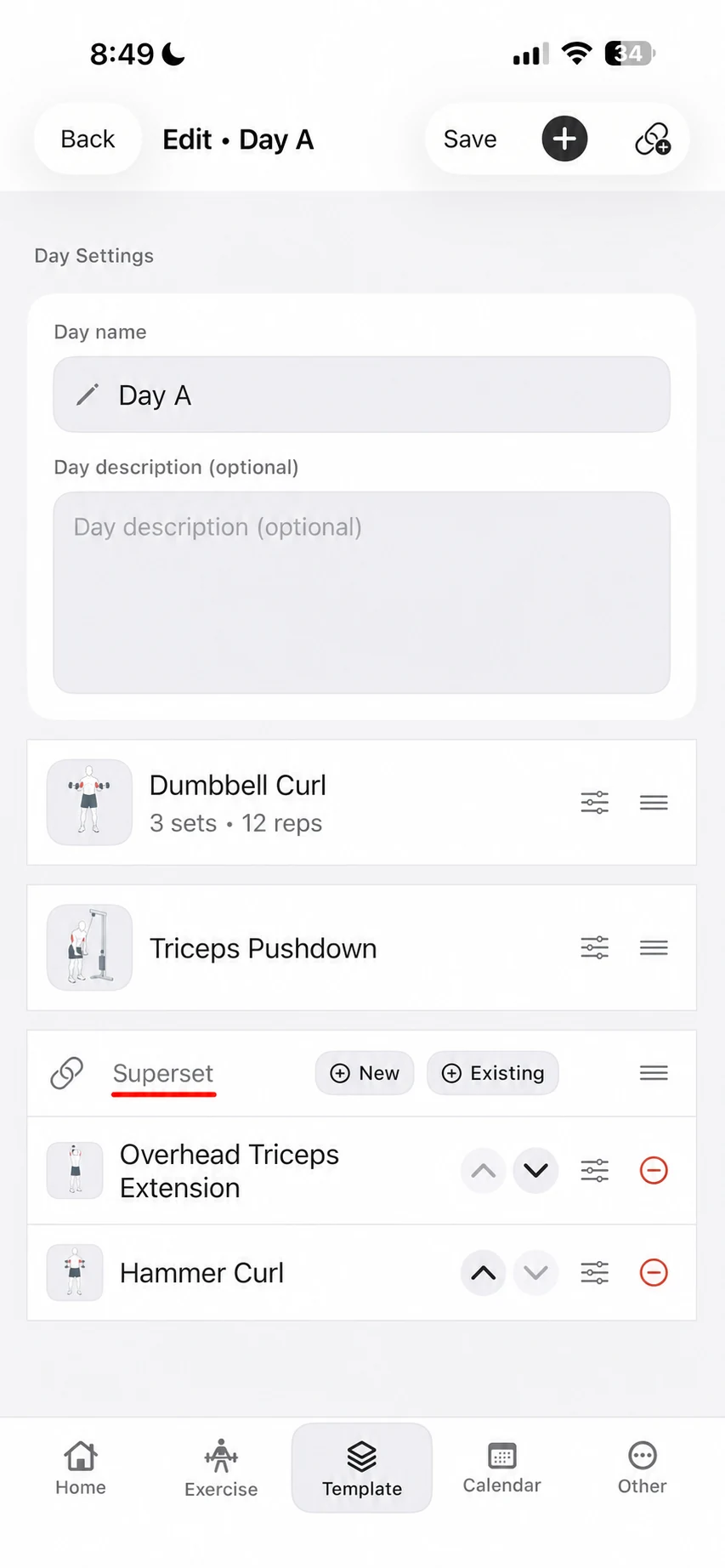
To make a superset, use the linked-circles superset control in the Day A editor, select two or more exercises, then tap Create. Here, Hammer Curl and Overhead Triceps Extension are selected. They become one superset group while the first two exercises remain outside it.
A superset group is editable after it exists. New adds a fresh exercise to the group; Existing adds one already in the template. The arrows let you change the order inside the group, and each exercise still has its own sliders for rep targets or notes. This is useful when the structure of the day changes but you do not want to rebuild it.
When you later start a workout from this day, the app treats the paired exercises as a round: move from the first to the second, then rest after the pair. For the logging flow itself, see How to Log a Workout in Fitness Karma.
Finish the second day and use the template
Day B follows the same pattern: open it, add exercises, set any rep reminders you want, then save. The example uses Cable Curl with three sets of 12 and Overhead Triceps Extension with the 12 / 10 / 8 scheme. It deliberately has no superset, because separate days do not have to use the same structure.
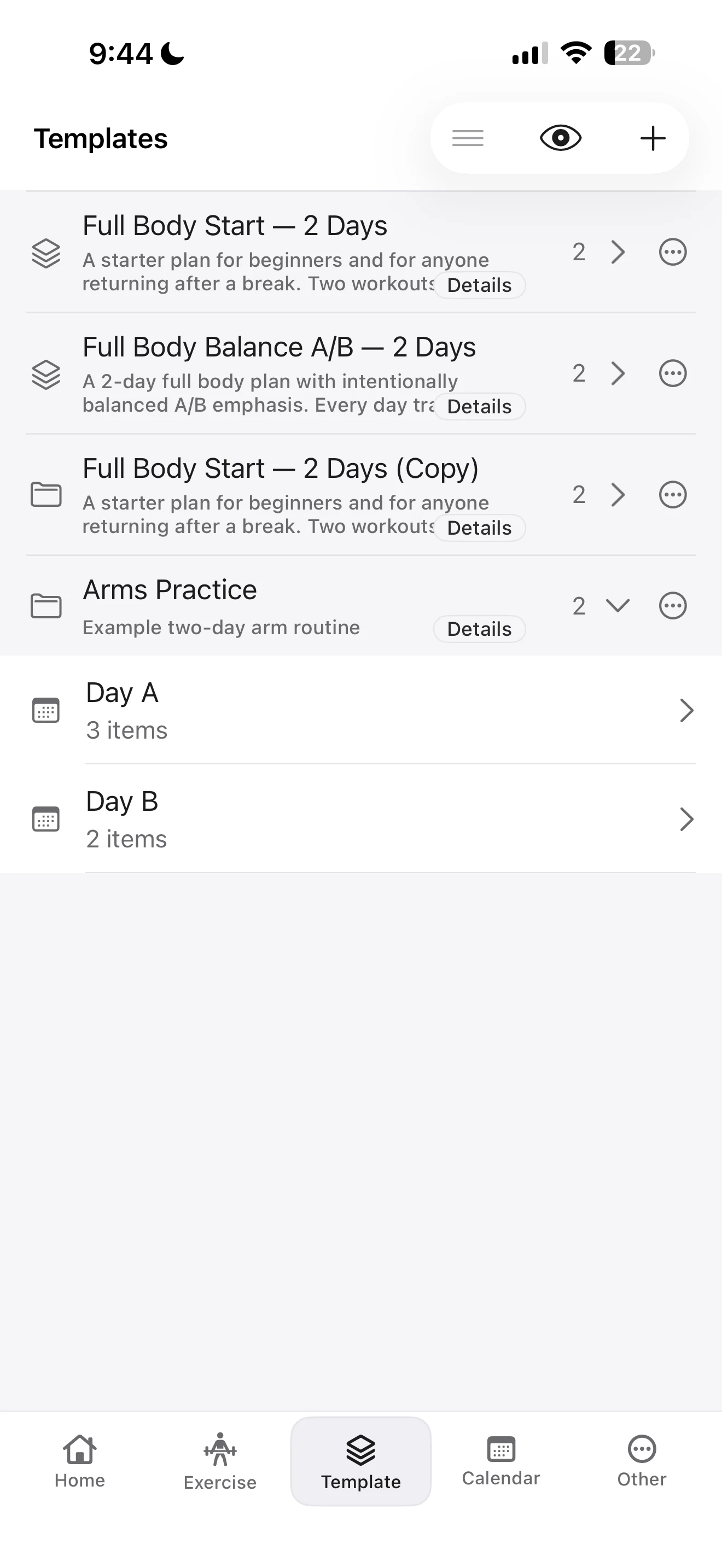
Once the day is saved, its screen is ready to start as a workout. You can also back out to the template library, where Arms Practice appears as a custom two-day template with Day A and Day B available whenever you need them.
Start from a ready-made template when that is closer to your plan
Creating from scratch is not the only route. Fitness Karma's nine system templates are protected reference templates: you can inspect and use them, but you cannot directly update or delete the original. That protects the version you may want to revisit later.
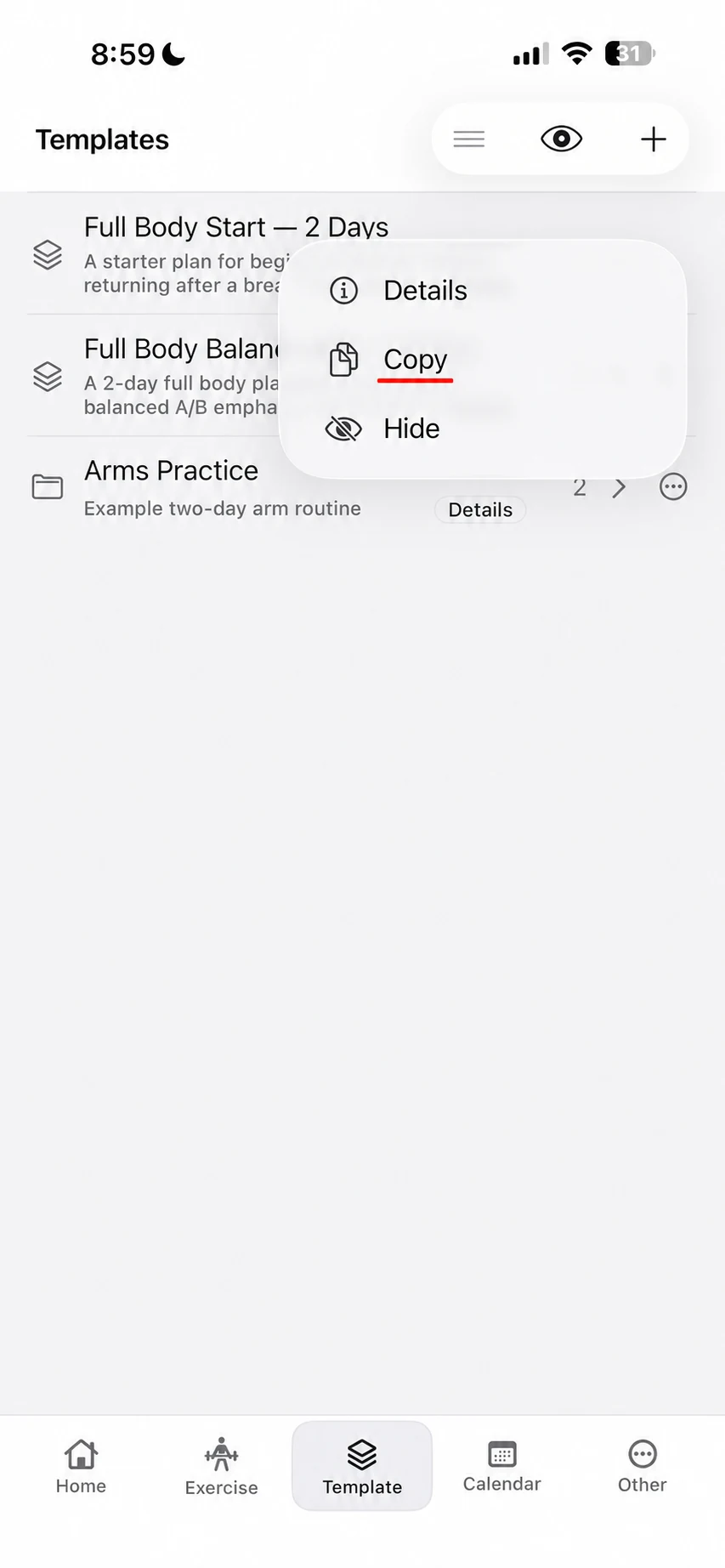
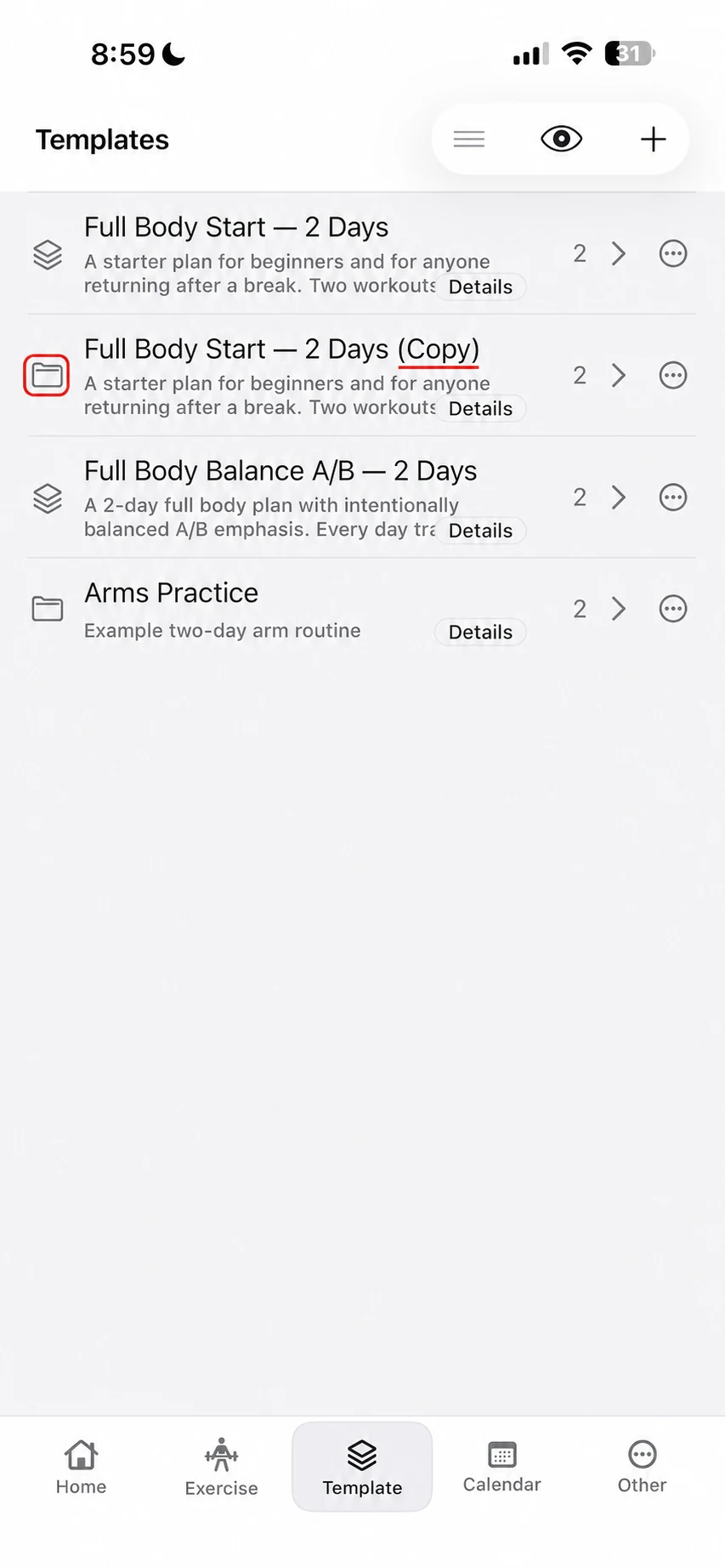
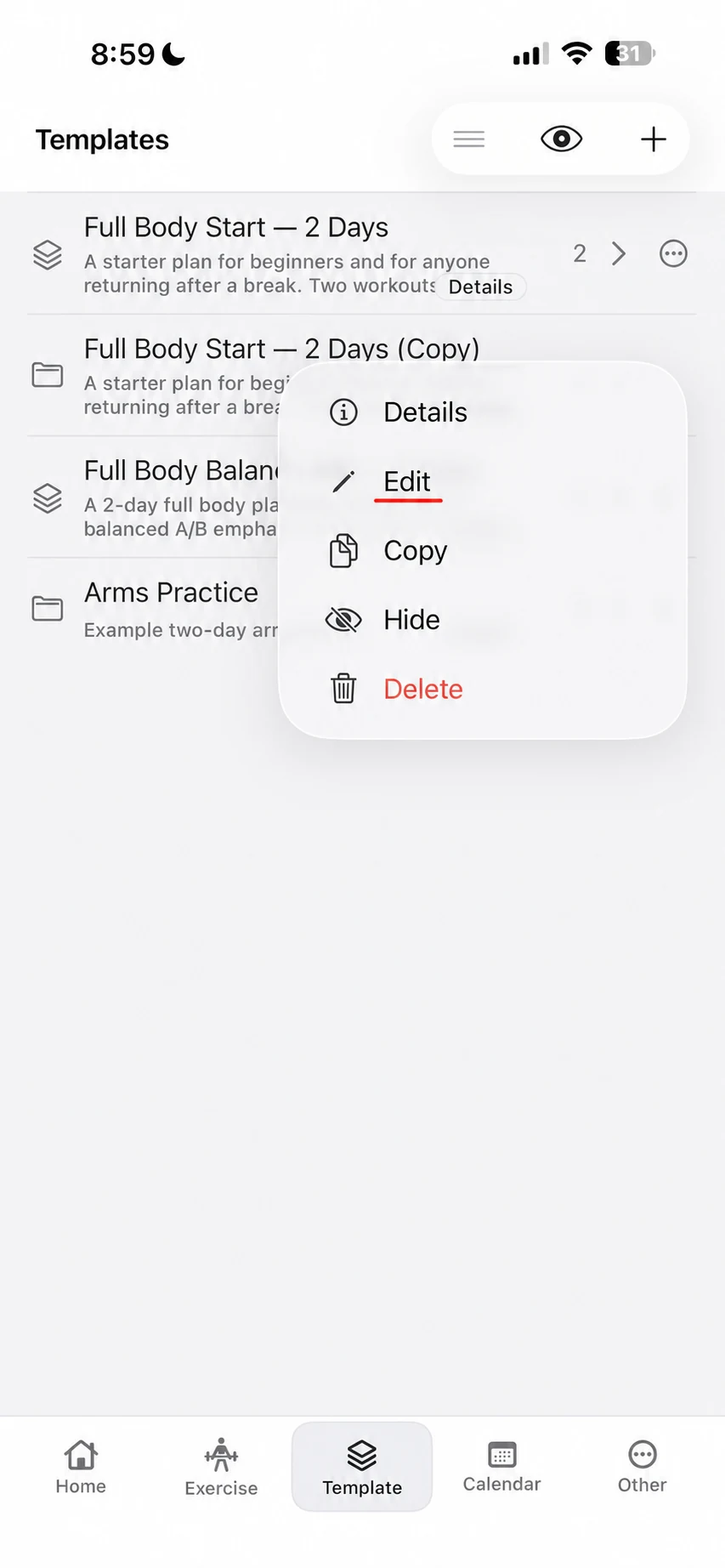
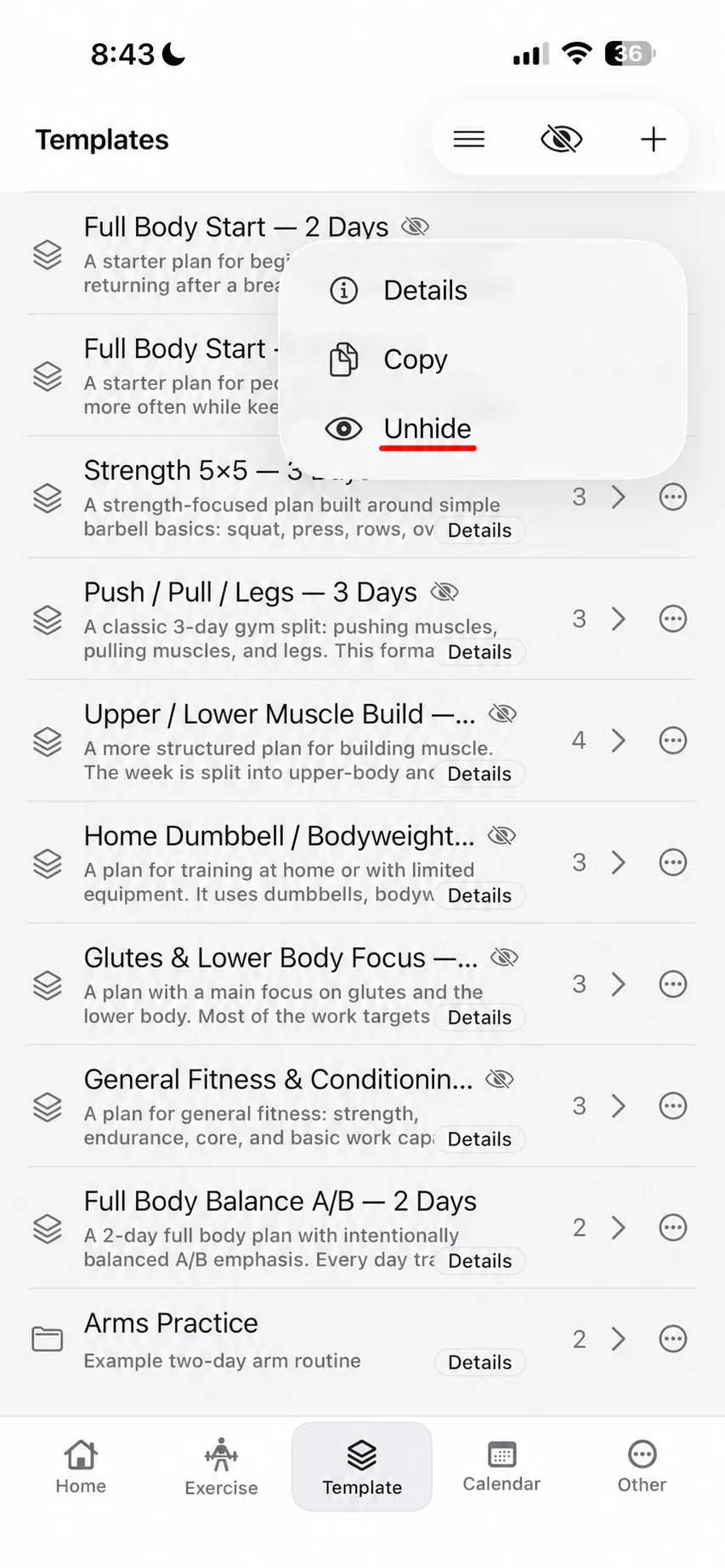
To customize one, open its three-dot menu and choose Copy. The copy is a separate custom template, shown with a folder icon and (Copy) in its initial name. The original system template remains in the library directly above it. From there, open the copy's menu to use Edit, rename it, change its days or exercises, and make it your own.
Hide what you do not want to see, without deleting the original
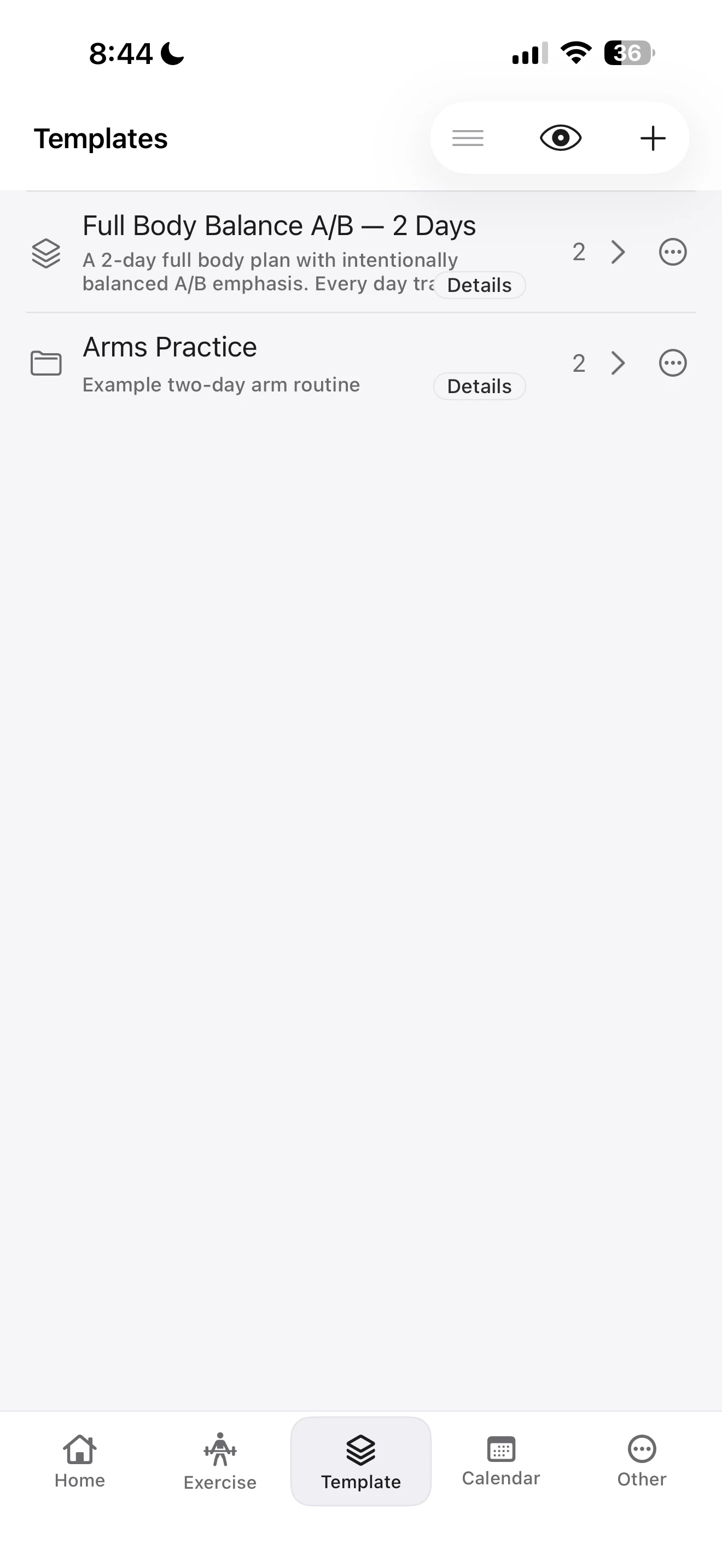
If a system template or an old custom template is not useful right now, choose Hide instead of deleting it. Hiding changes your library view; it does not destroy a system template. When you want to find hidden items again, use the eye control in the Templates library, then choose Unhide from that template's menu.
This is particularly useful when you want a short, personal working list while keeping reference templates available for later. A custom template can be deleted if you no longer want it; the protected system template cannot.
A template is structure, not a coach
A good template removes repeated setup: it gives you the same days, order, planned reps, and optional supersets without making you rebuild them at the gym. It does not select a safe working weight, check technique, or decide what training plan is right for you.
Use a ready-made template when it is close to what you need, or create a custom one when the structure is yours. If an exercise is missing from the library, you can also create a custom exercise. For the broader picture of the app, see Fitness Karma: A Fast Workout Log for Lifters and How to Track Progress With Workout History, PRs, and Calendar.
If you want a workout templates app that lets you keep a reusable structure without treating it as a rigid rule, try Fitness Karma.