
An article from Fitness Karma
How to Back Up and Restore Workout History in Fitness Karma
Learn how Fitness Karma protects your workout history with local backups, optional iCloud upload, automatic copies, and safety backups before restore.
A workout log gets harder to replace the longer you keep it. The numbers may look ordinary—last week's squat, the dumbbell weight that finally felt right, a template you adjusted over a few months—but together they are the context for your next session.
That is why a workout app backup should give you more than one irreversible choice. In Fitness Karma, backups are created on the device first. iCloud is an optional extra for storing and restoring copies, not a requirement for keeping a local record and not a live service that merges workout histories across devices.
The distinction matters. The developer built this part of Fitness Karma after a confusing import/export action in an earlier app overwrote roughly six months of his own history. Rebuilding working weights took about a week. The point here is not to make restore feel dramatic. It is to leave a clear way back when a restore turns out not to be the one you meant to use.
Three kinds of backup, with different jobs
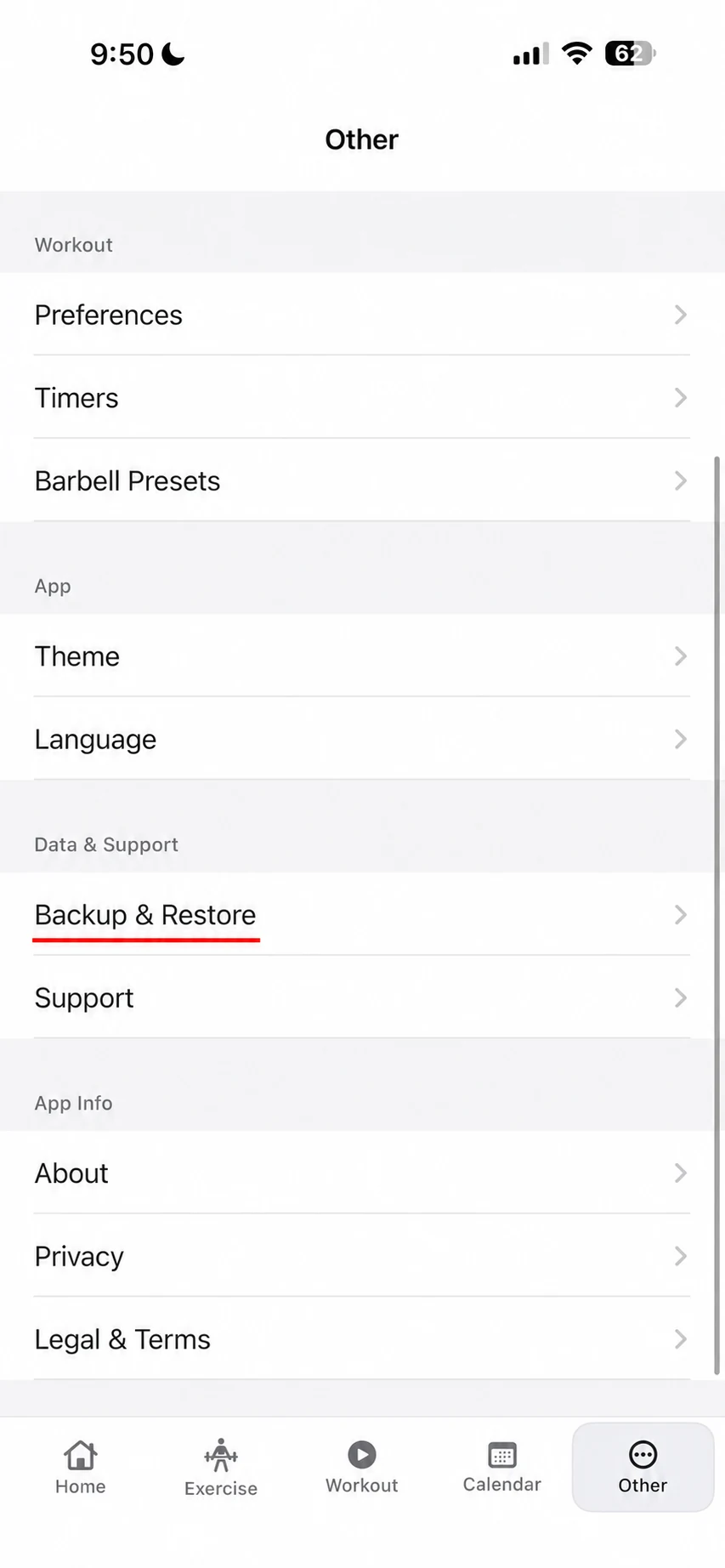
Fitness Karma uses manual, automatic, and safety backups. They are deliberately not all the same thing.
A manual backup is for a moment you want to name and keep: before changing a program, before experimenting with templates, or simply before a period when you want an extra restore point. An automatic backup is there so routine logging does not depend on remembering to make a copy. Completing a workout creates one immediately. Changes to recent history, templates, custom exercises, bodyweight or measurements, and preferences can also request an automatic backup; related changes are grouped in a short 60-second window rather than making a new copy for every tap.
The third kind is the important guardrail: a safety backup is created locally before you restore another copy. It preserves the state you are about to replace, so a mistaken restore does not have to become permanent.
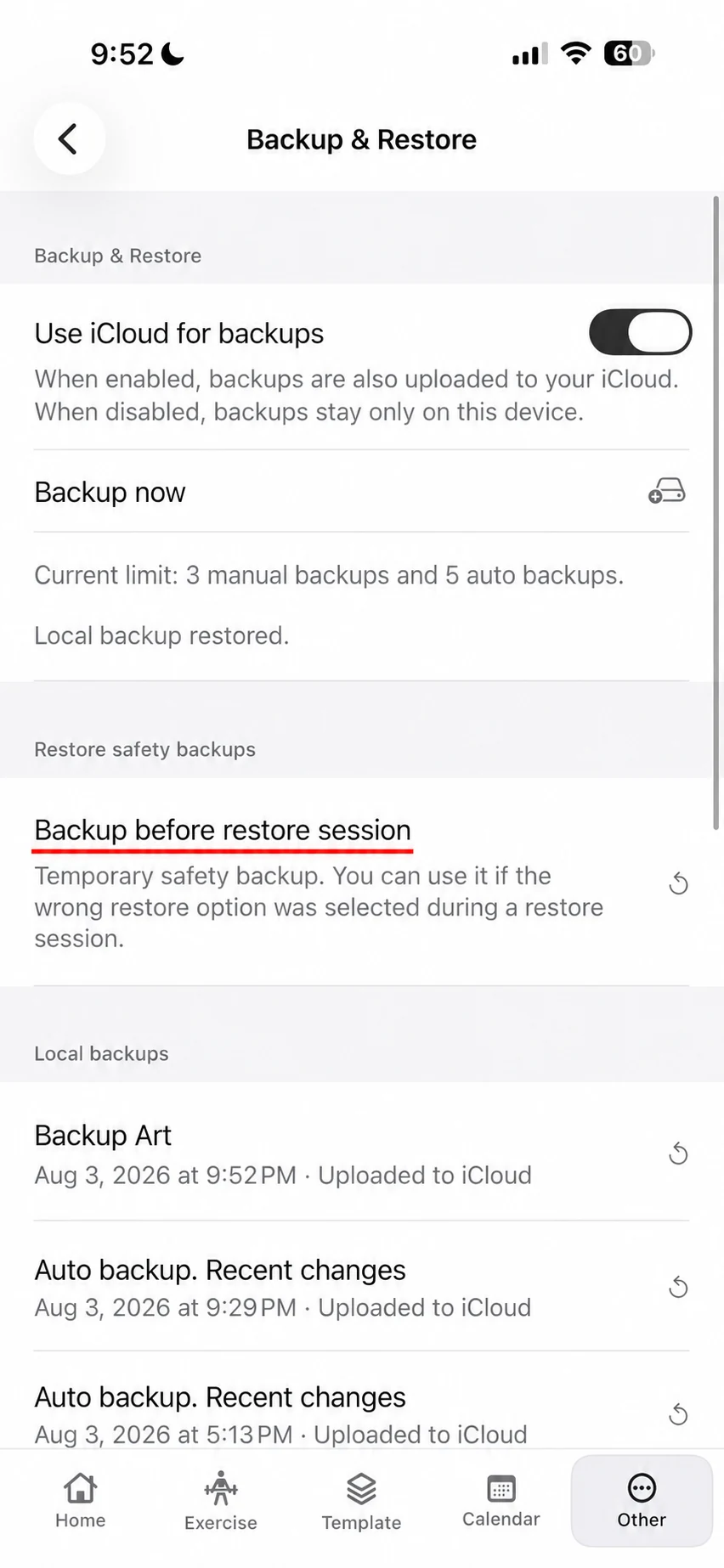
Fitness Karma keeps up to three manual backups and five automatic backups. When a newer backup of one of those same kinds needs space, the older one is pruned. Safety backups sit outside those two limits: there is one slot for each safety-backup kind, and a later safety copy of the same kind replaces the earlier one.
Local first; iCloud only if you choose it
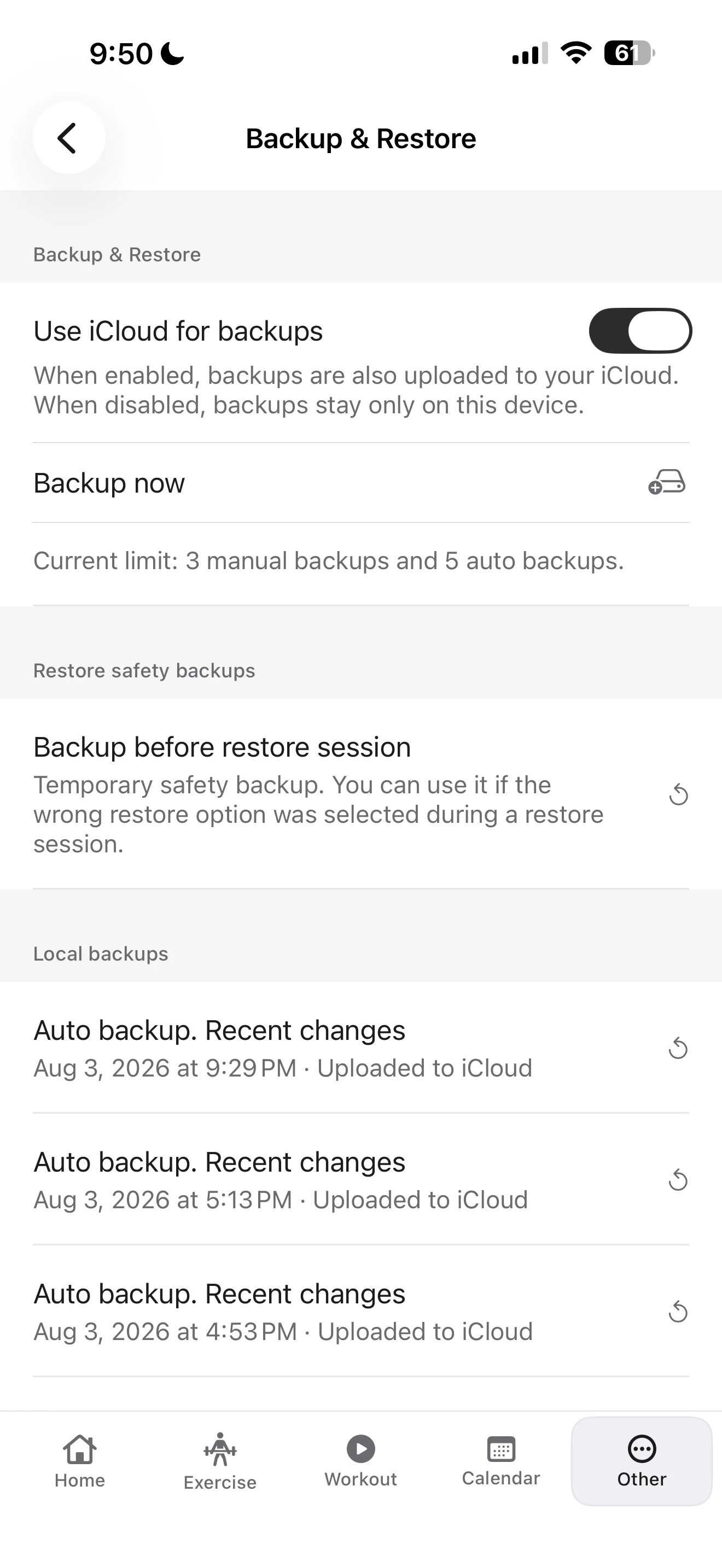
Every backup package is saved locally on the device before any optional upload is attempted. This means your gym log backup is still useful when iCloud is off or temporarily unavailable.
iCloud backup is off by default. If you turn it on, manual and automatic backups are uploaded after their local save. The list makes the state understandable: Uploaded to iCloud means that copy is in iCloud; Upload pending means the local copy exists but the upload has not completed yet. With the iCloud option off, the app describes backups as local only.
If iCloud is unavailable, Fitness Karma keeps the local backup. The upload can remain pending and be retried when iCloud availability or configuration is handled again. There is no separate Retry button to manage. Just as importantly, this is not automatic cross-device sync or a merge service: moving history to another device requires deliberately restoring an iCloud backup.
What restoring workout history changes
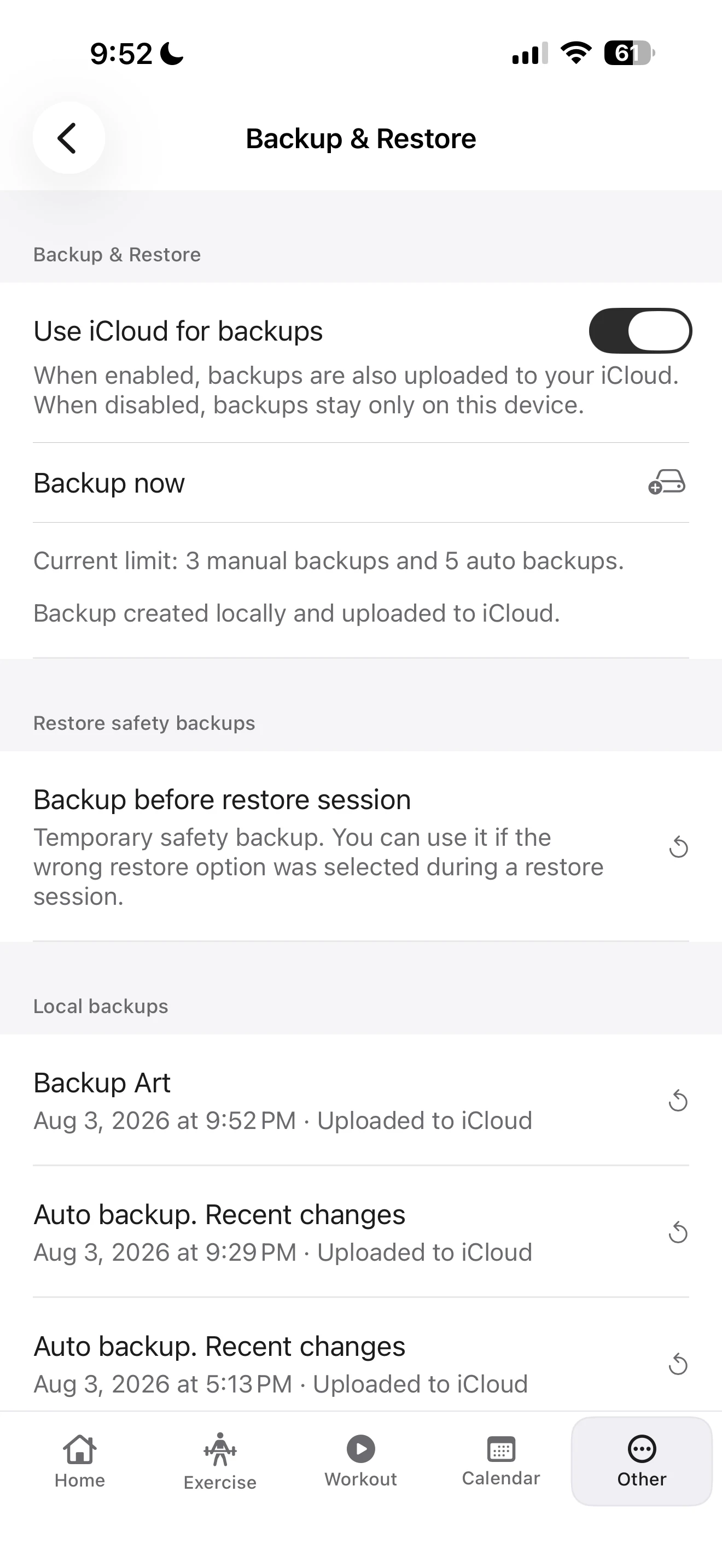
Restoring an older copy is useful when you need to recover a lost workout log, return to an earlier template, or undo changes you no longer want. It is also a consequential action, so Fitness Karma asks for confirmation in plain language: current saved data will be replaced by the selected backup.
One boundary is worth knowing before you confirm: active, in-progress workout entries are not restored. Finish or record anything you want to keep from the current session first. Completed history, saved data, templates, and other data contained in the selected backup are what the restore replaces.
The safety copy is the way back from a wrong restore
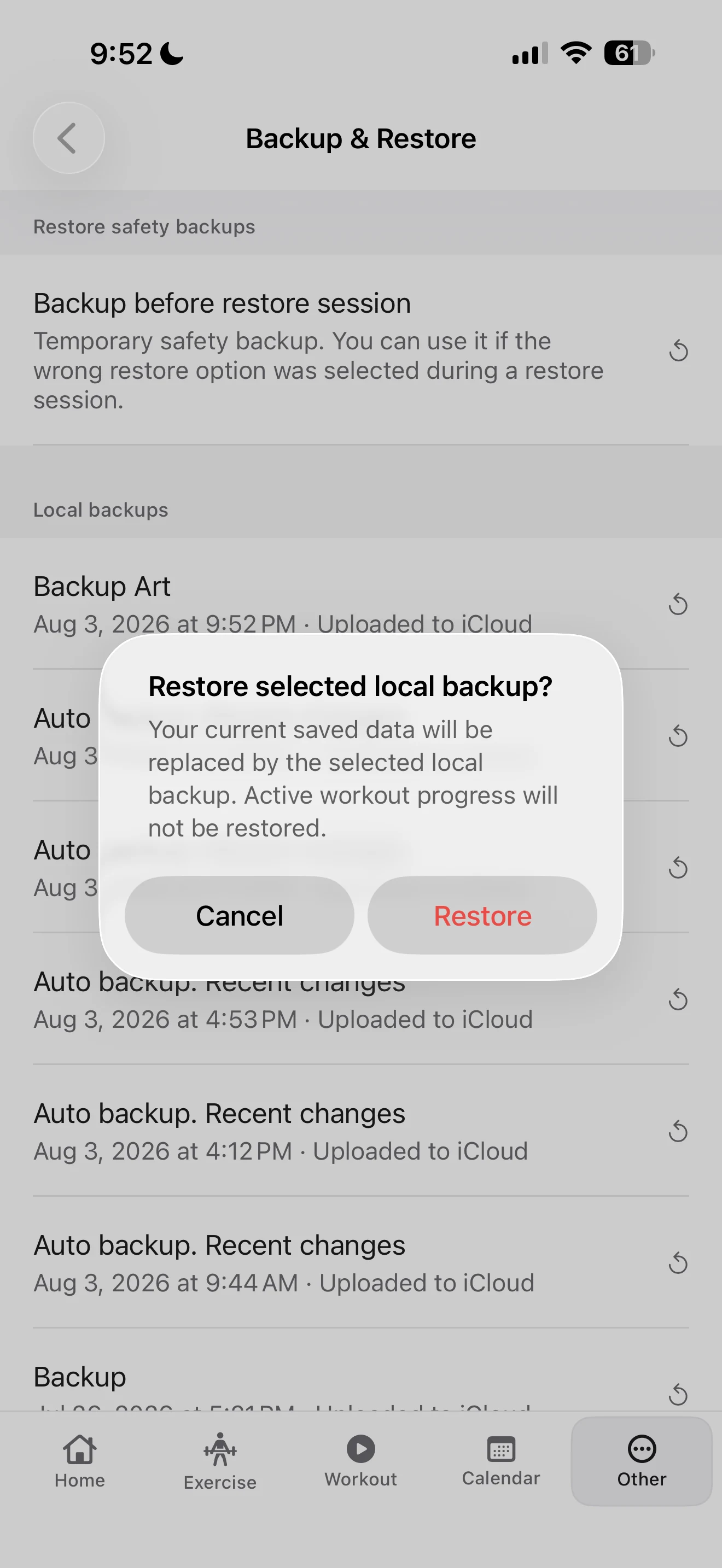
Immediately before a restore, Fitness Karma saves the current state locally as a safety backup. If you restore the wrong dated copy, you can restore that safety backup and return to the state that existed before the mistake.
You may see one of two labels. A new restore cycle creates Backup before last restore. Further restores within the same short restore cycle—within 48 hours and before two finished workouts—use Backup before restore session. The labels describe where you are in that sequence; both are local-only safety copies, not iCloud uploads. They are also not permanent archives: a later safety copy of the same kind can replace an earlier one.
That is the small but useful difference between “restore” and “commit forever.” You can make a careful decision, see the warning, and still have a practical recovery point if the result is not what you expected.
Keep the history useful enough to trust
Backups are not the exciting part of a workout log. They are what makes the useful part—your accumulated history—less fragile. Fitness Karma keeps that process local first, makes cloud upload optional, and adds a safety copy before restore instead of treating recovery as a one-way action.
If you want the wider picture of how the app records training, read Fitness Karma: A Fast Workout Log for Lifters, How to Track Progress With Workout History, PRs, and Calendar, or How to Log a Workout in Fitness Karma.
If keeping a recoverable record of your training is the kind of boring detail you value, try Fitness Karma.