
An article from Fitness Karma
How to Create a Custom Exercise in Fitness Karma
Create a custom exercise in Fitness Karma when a movement is missing from the library: choose metrics, muscles, equipment, bodyweight settings, and notes.
An exercise library is useful until the movement you actually do is not in it. Maybe it is a variation with a particular grip, a machine at your gym, or a bodyweight movement performed at a specific angle. Forcing it into the closest-looking exercise can make the log harder to read later.
The practical answer is to add a custom exercise. In Fitness Karma, a custom exercise is your own library entry: you give it a name and decide what the app should record for it. You can then select it in a workout like the rest of the library.
This guide uses Reverse-Grip Inverted Row (Feet Elevated) as an example. The point is not that everyone should do that movement, or use the same settings. It is simply a clear example of how to describe the movement you want to record.
System exercises and custom exercises are different on purpose
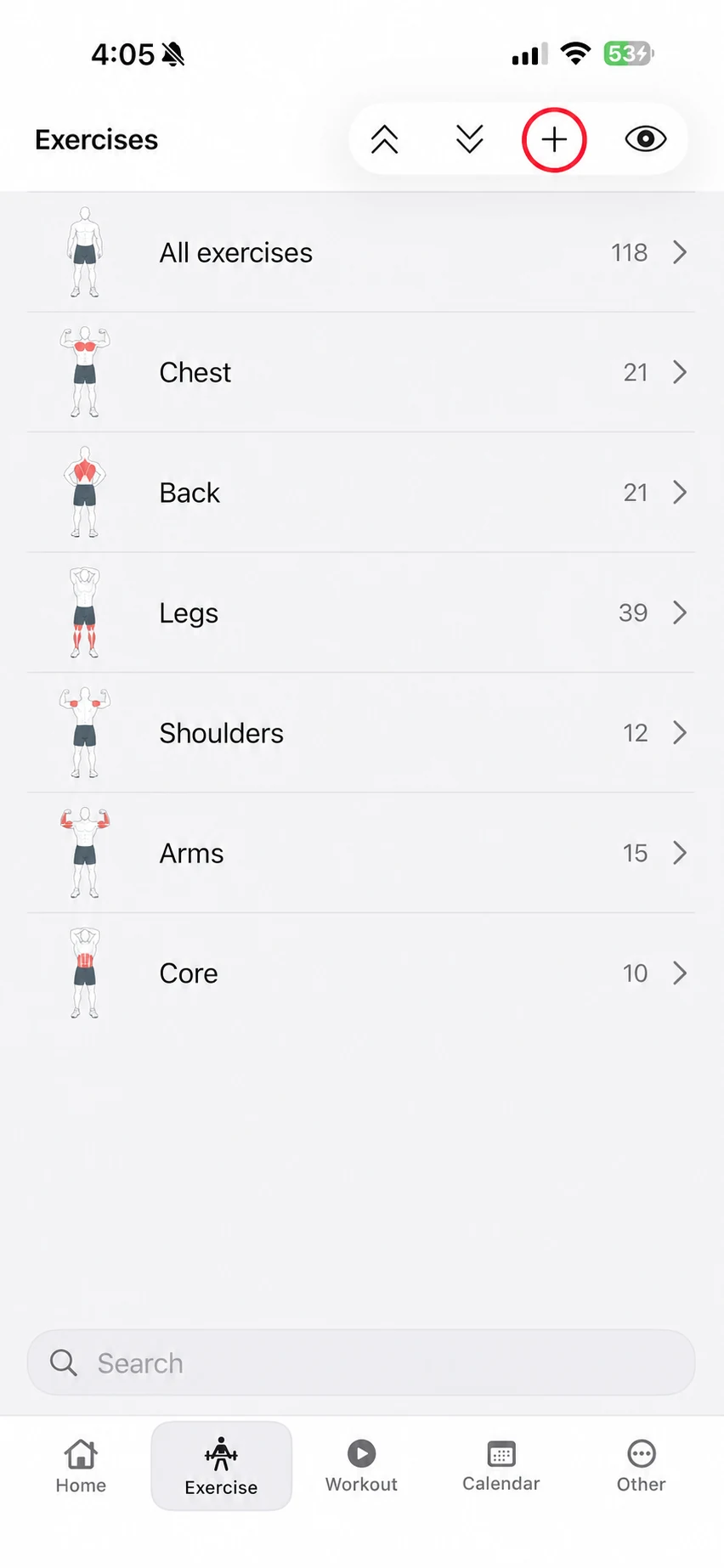
Fitness Karma starts with a system library of 118 exercises. Those entries have protected identity and core setup, including their localized names, media and details seed data, metrics, and muscle setup. You can hide a system exercise if you do not want it in normal selection lists, but hiding it is not the same thing as rewriting it.
A custom exercise is for the cases where the system entry does not describe what you do. Its name, muscles, equipment, metric type, bodyweight settings, details, and visibility can be edited later. It can also be deleted. That separation keeps the original library consistent while leaving room for a home setup, an unusual machine, or a personal variation.
Create the entry from top to bottom
Tap the plus button in the Exercise library. The creation screen is laid out in the same order you should normally make the recording decisions: name, metric type, bodyweight mode, equipment, muscles, and details.
1. Name the movement so future you will recognise it
Start with a name that distinguishes the variation you actually perform. Reverse-Grip Inverted Row (Feet Elevated) is more useful in a future workout history than a vague duplicate such as Row.
The name does not need to be clever or standardized. It only needs to make sense when you see it beside your other exercises months from now.
2. Choose what a set should record
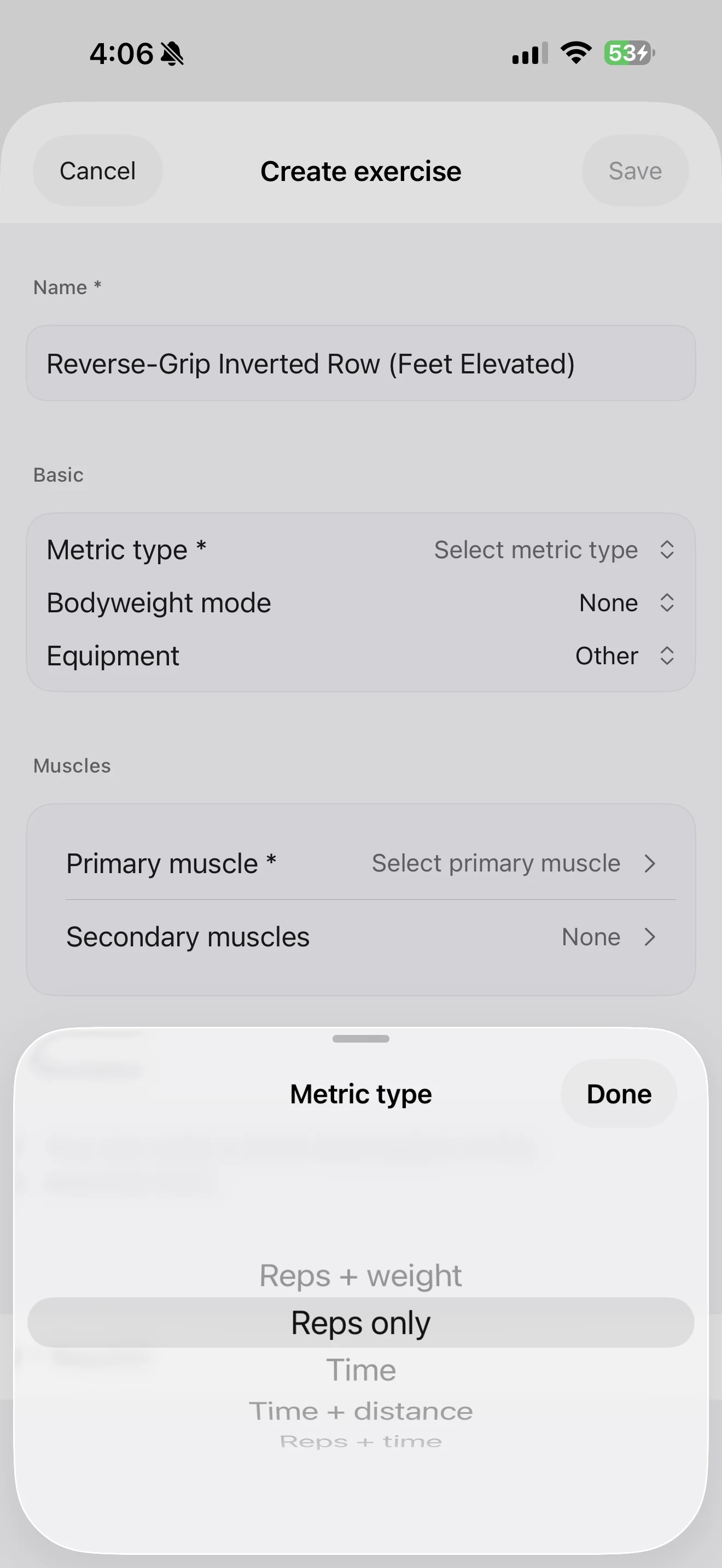
Metric type tells the app what belongs in each set. In the current creation screen, the choices are:
Reps + weightReps onlyTimeTime + distanceReps + time
For the example row, choose Reps only. That means the useful unit for a set is how many repetitions you completed; it does not make the exercise a weighted barbell entry.
3. Decide how bodyweight applies
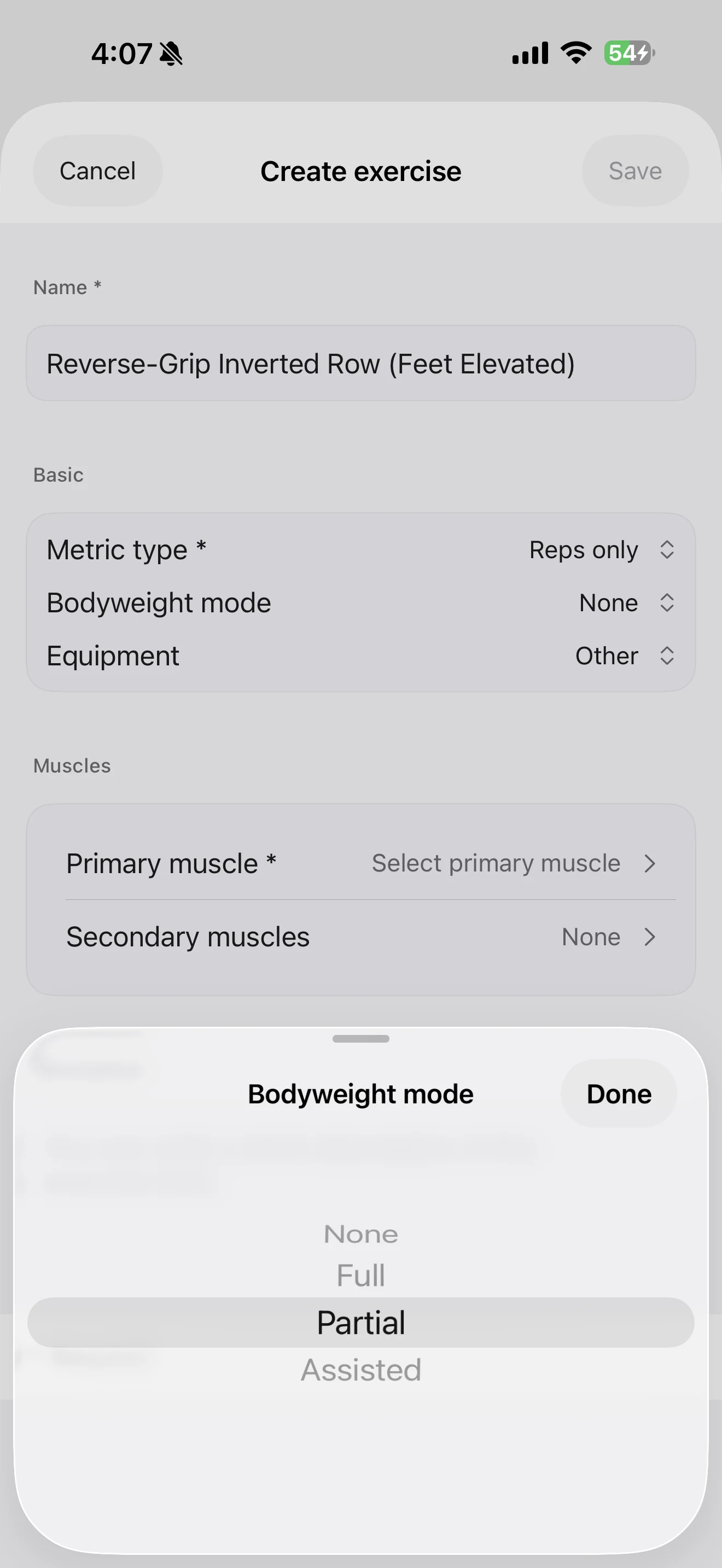
The bodyweight setting is a recording choice, not a judgment about form or an instruction about what you should train. Custom exercises can use these four modes:
None— no bodyweight-based load calculation.Full— the movement uses full bodyweight.Partial— the movement uses a percentage of bodyweight.Assisted— assistance is subtracted from the relevant bodyweight contribution.
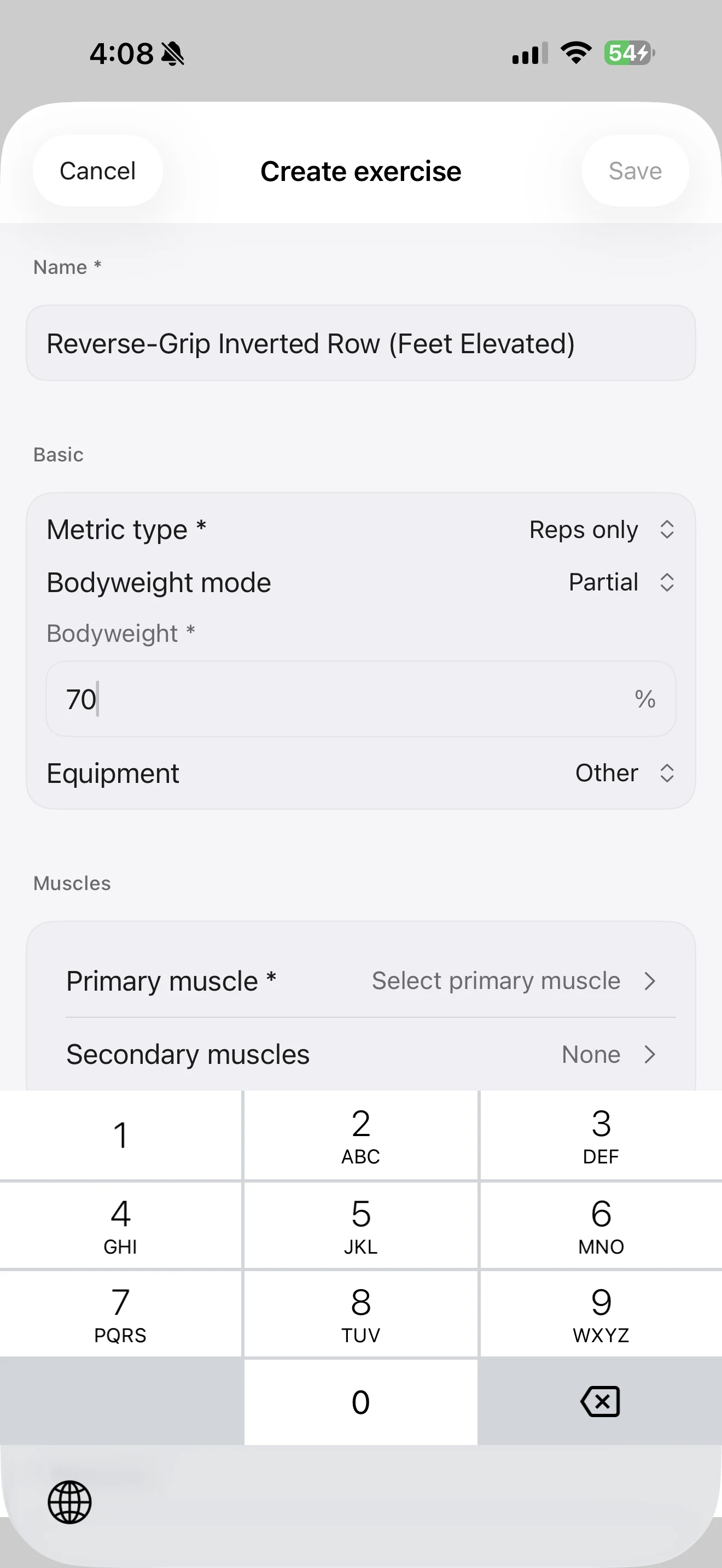
Partial and Assisted are alternatives, not settings to combine on one exercise. If you choose Partial, Fitness Karma gives you a percentage field. For a custom exercise, you can enter an integer from 1% to 100%.
For this example, the field is set to 70%. That is a user-entered example, not a claim that every inverted row is exactly 70% of bodyweight. If a different percentage better describes the way you want to record your own variation, enter that number instead.
For the broader explanation of how full, partial, and assisted bodyweight affect recorded load, see How Fitness Karma Tracks Bodyweight, Assisted, and Partial-Bodyweight Exercises.
4. Select the equipment actually involved
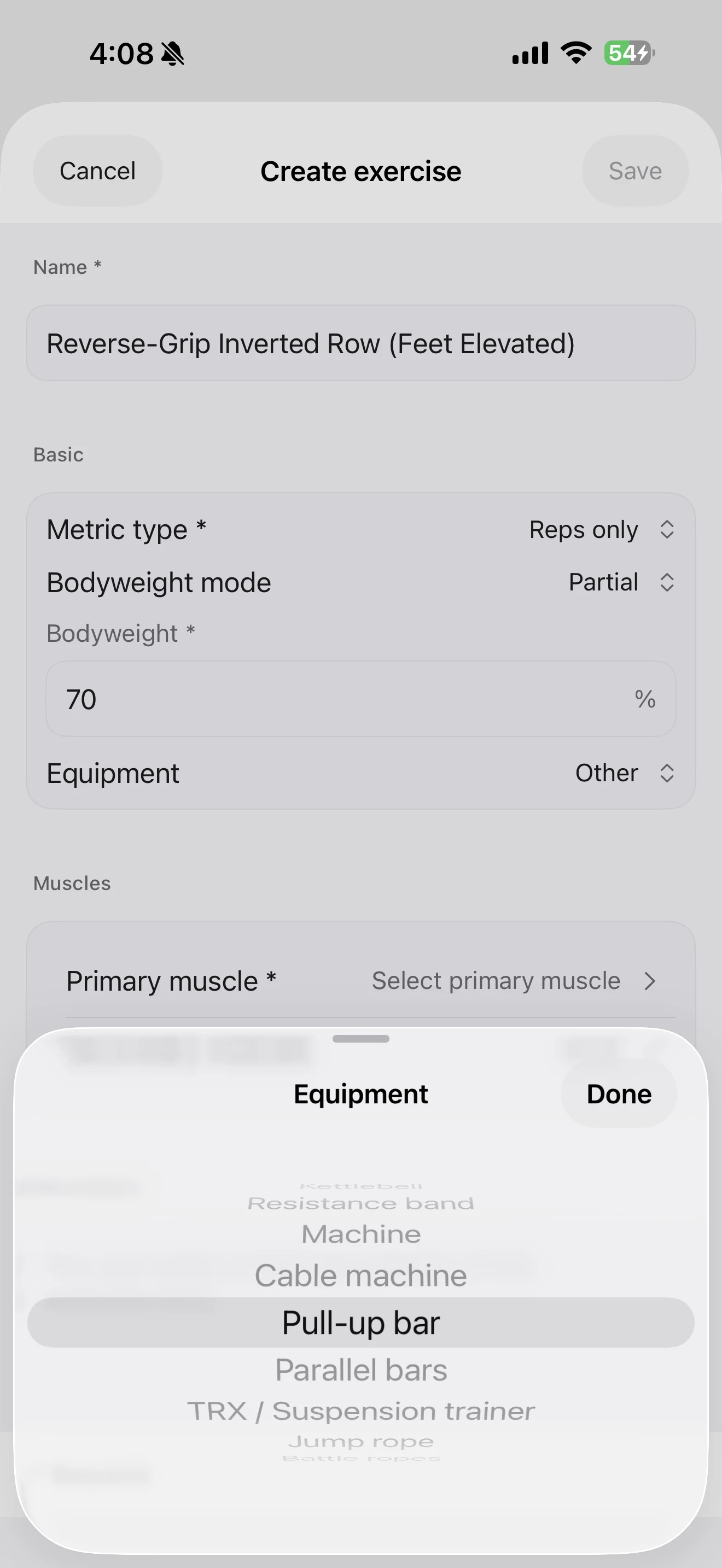
Next, choose the equipment that best describes the movement. The available options cover no equipment, barbell, dumbbells, kettlebell, resistance band, machine, cable machine, pull-up bar, parallel bars, TRX / suspension trainer, jump rope, battle ropes, plyo box, cardio machine, and other.
For this row, select Pull-up bar. This is useful context for the exercise entry; it does not force a particular way of logging every set. If you are logging external load as well, use the load-mode guide for the separate question of how that load is entered.
5. Add primary and secondary muscles
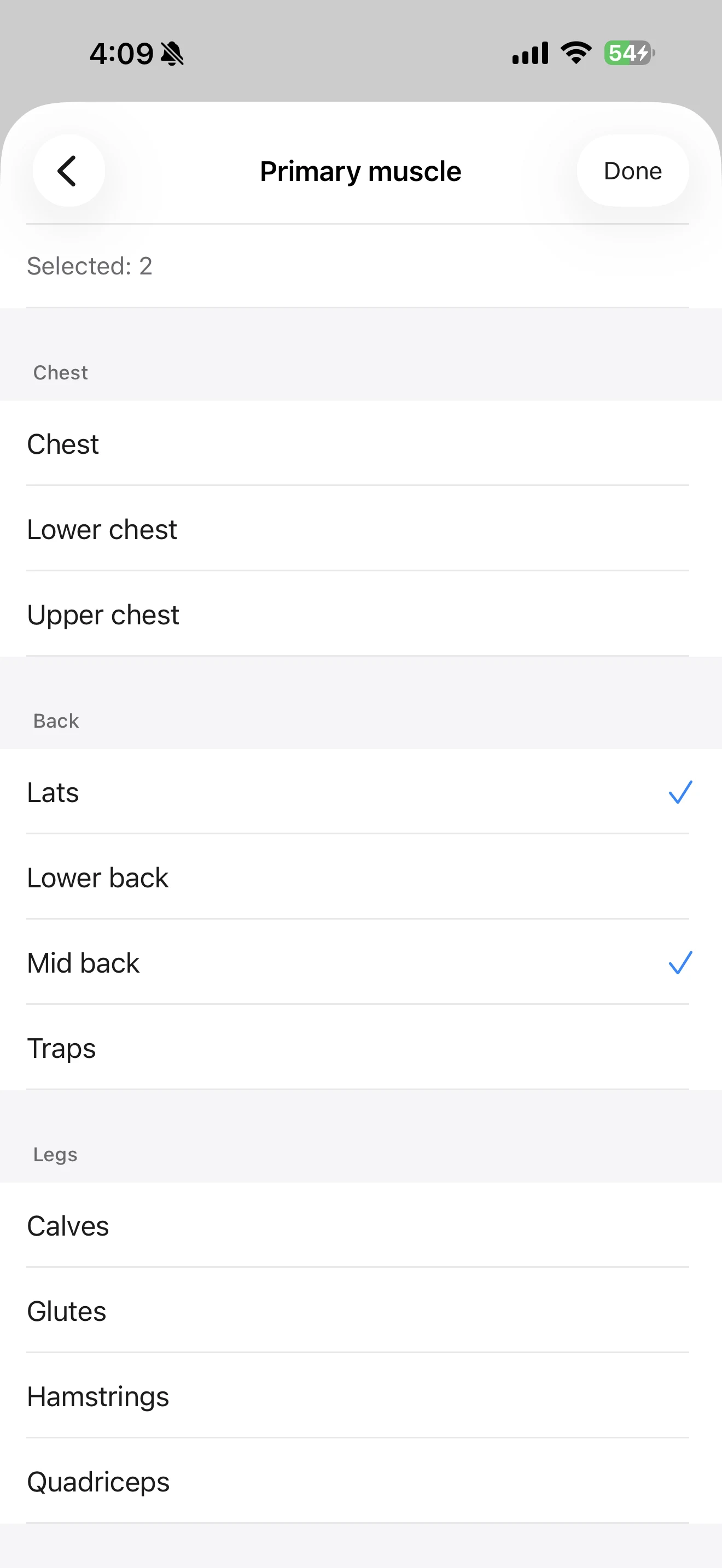
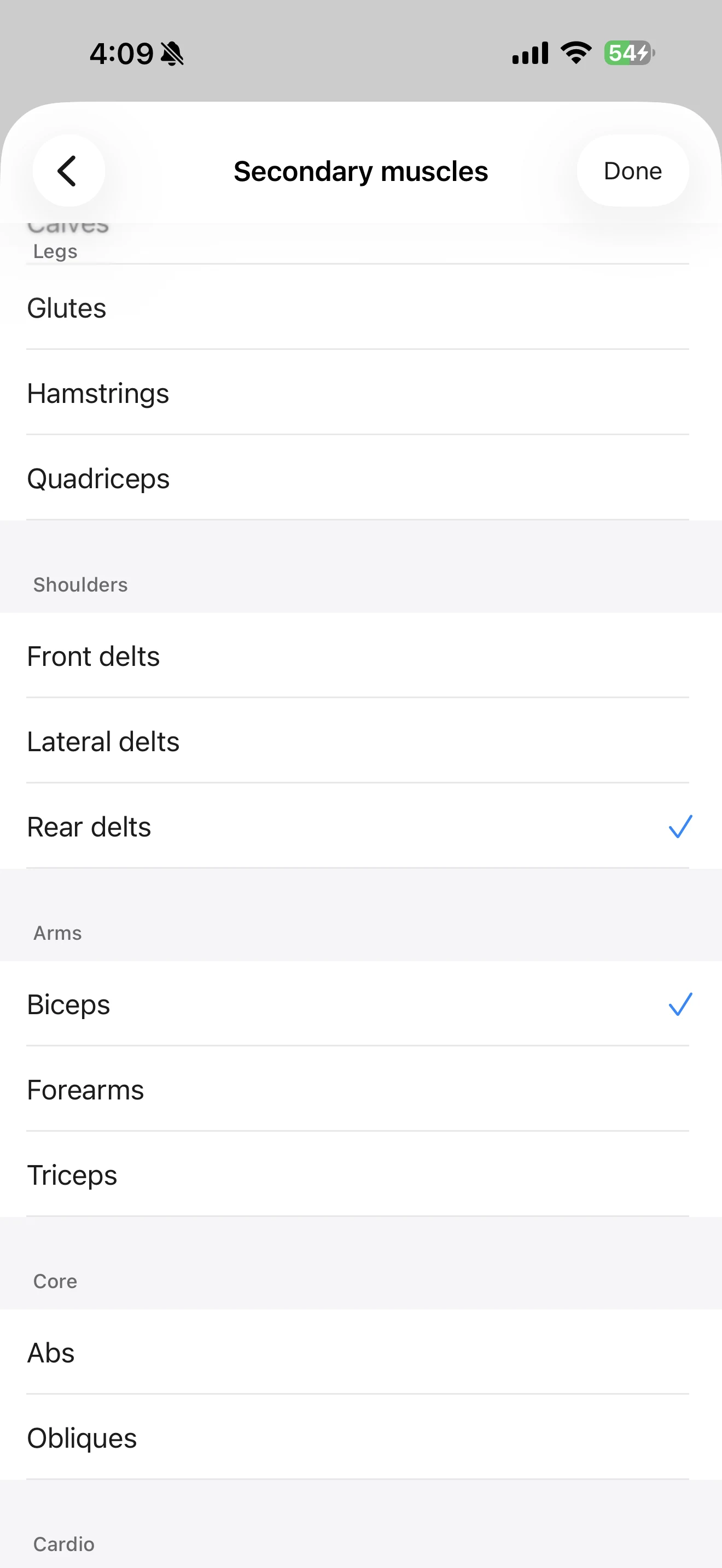
At least one primary muscle is required. Both primary and secondary muscle fields support more than one selection, so you can describe a movement with more than one target in each role.
For the example, Lats and Mid back are selected as primary muscles. Biceps and Rear delts are selected as secondary muscles. These selections describe how this particular custom entry is organised in the app; they are not a technique assessment or a universal prescription for the movement.
6. Add a short detail, set visibility, and save
Use the description field for a note that helps distinguish the variation: Reverse grip, feet elevated on a bench is enough here. You can also set the exercise's visibility before saving. Keep the entry focused on what you need to recognise and record, rather than trying to turn it into a full coaching note.
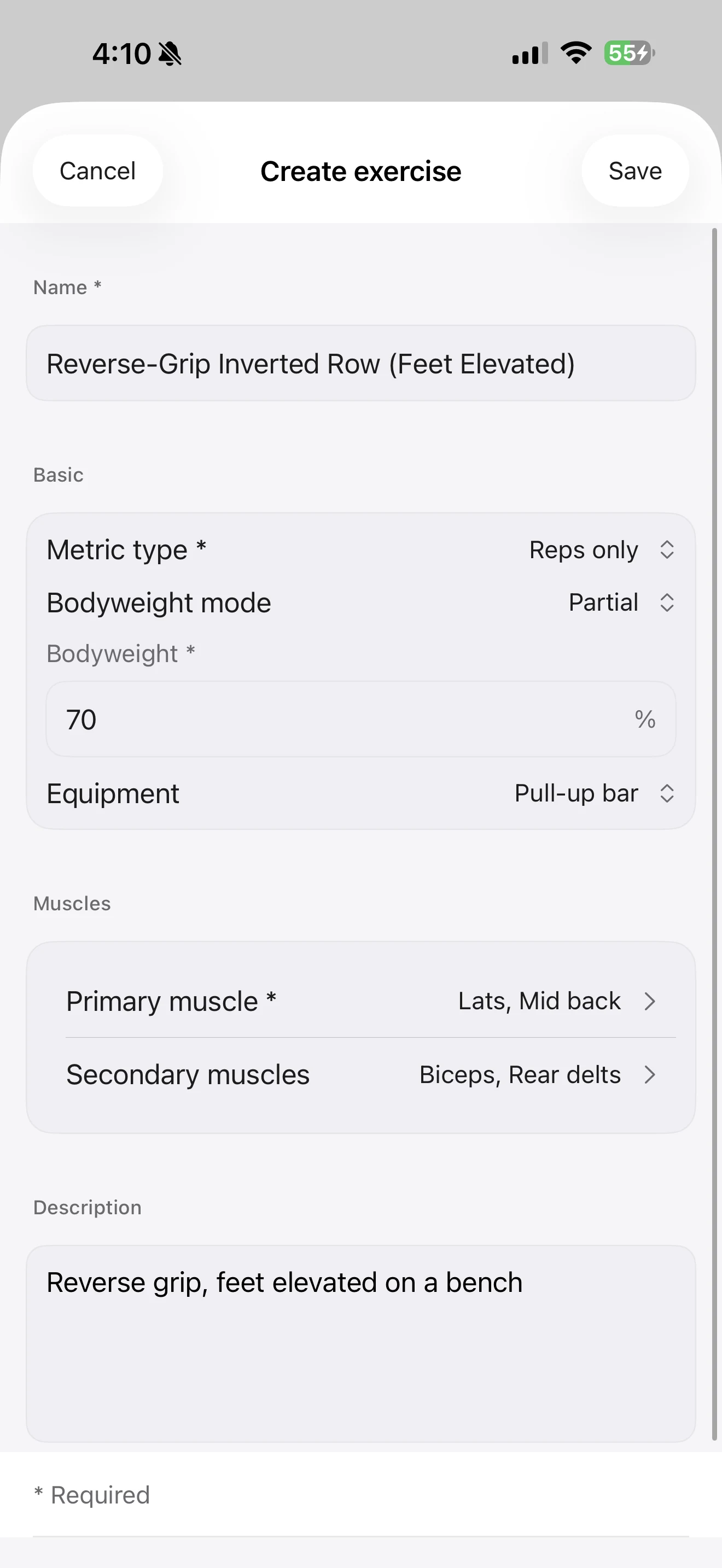
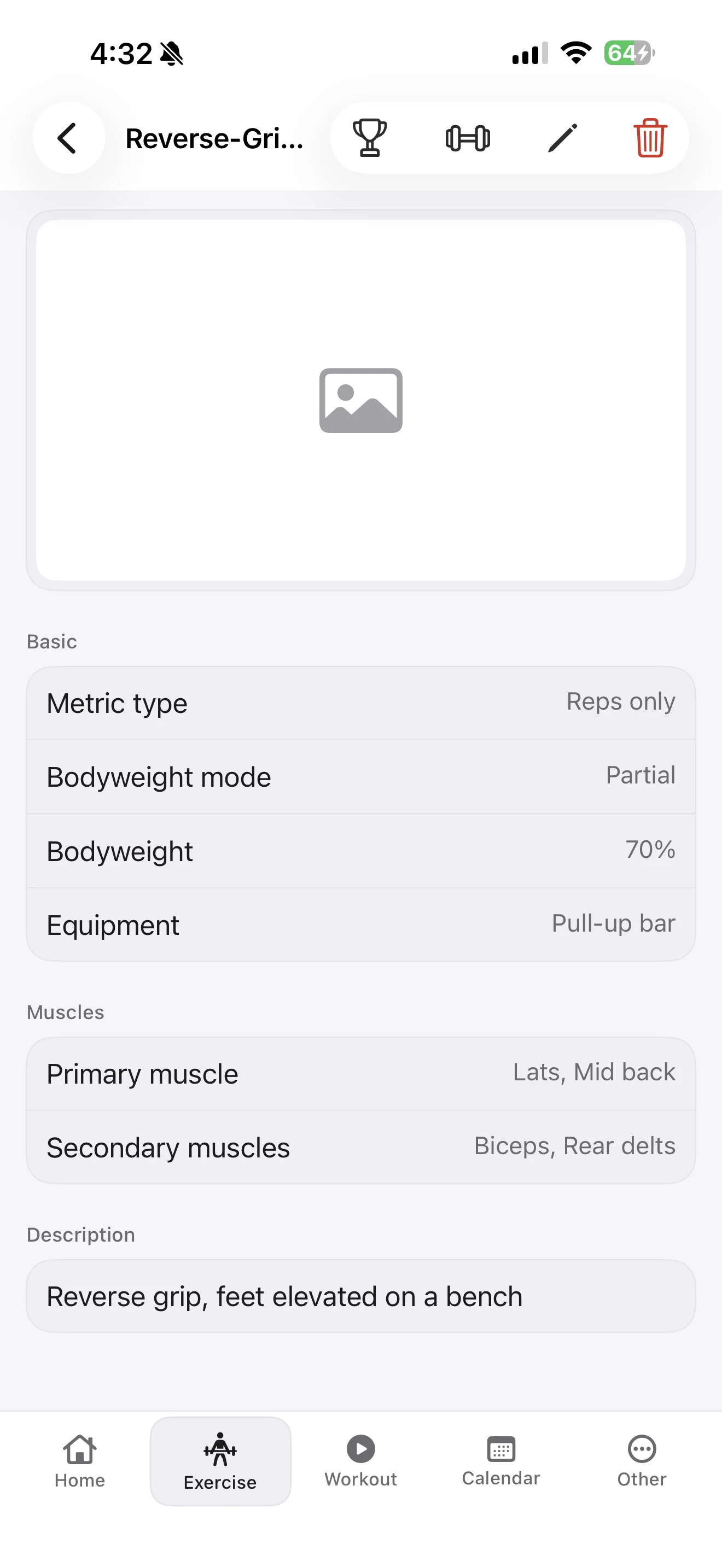
The completed example now has a name, Reps only metric, Partial bodyweight at 70%, pull-up bar equipment, multiple primary and secondary muscles, and a short description.
When to use Assisted instead of Partial
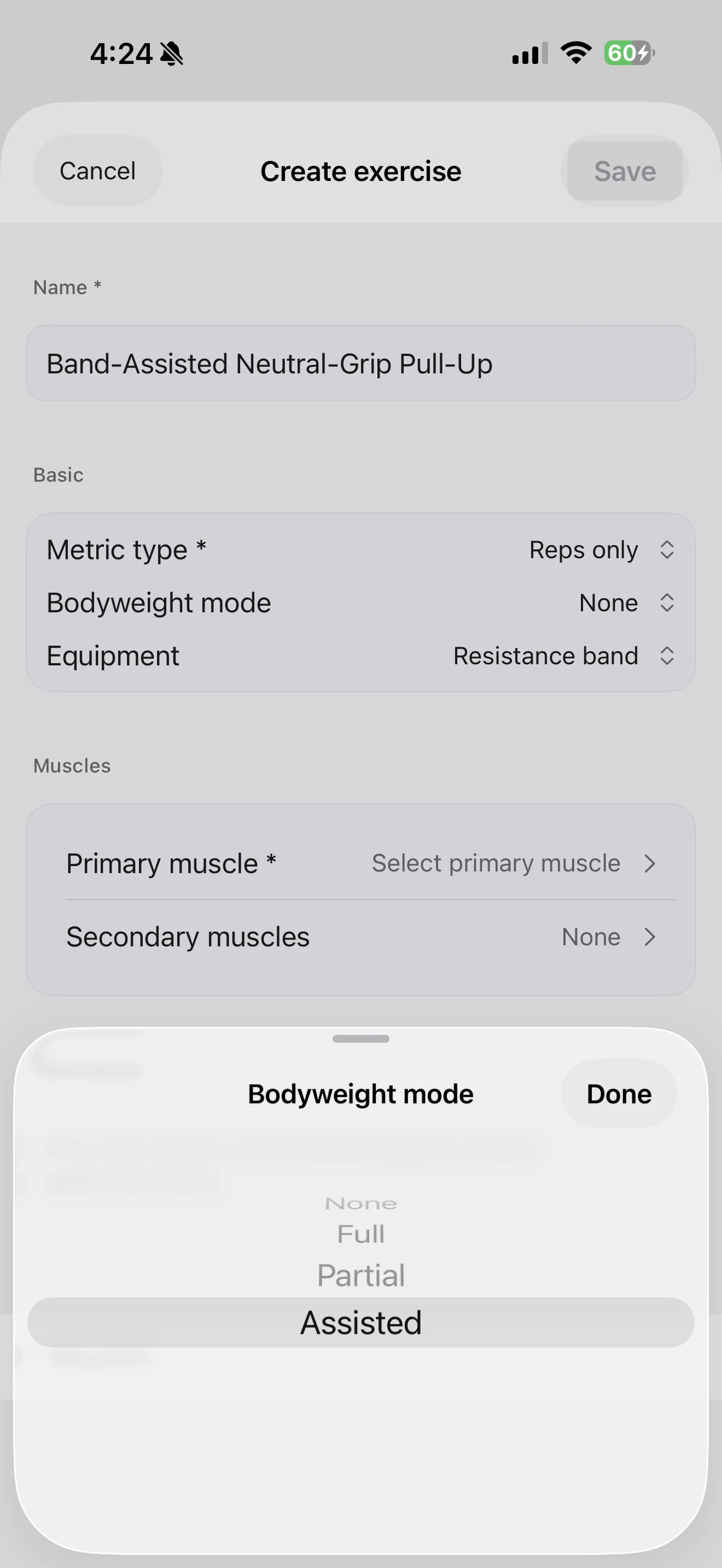
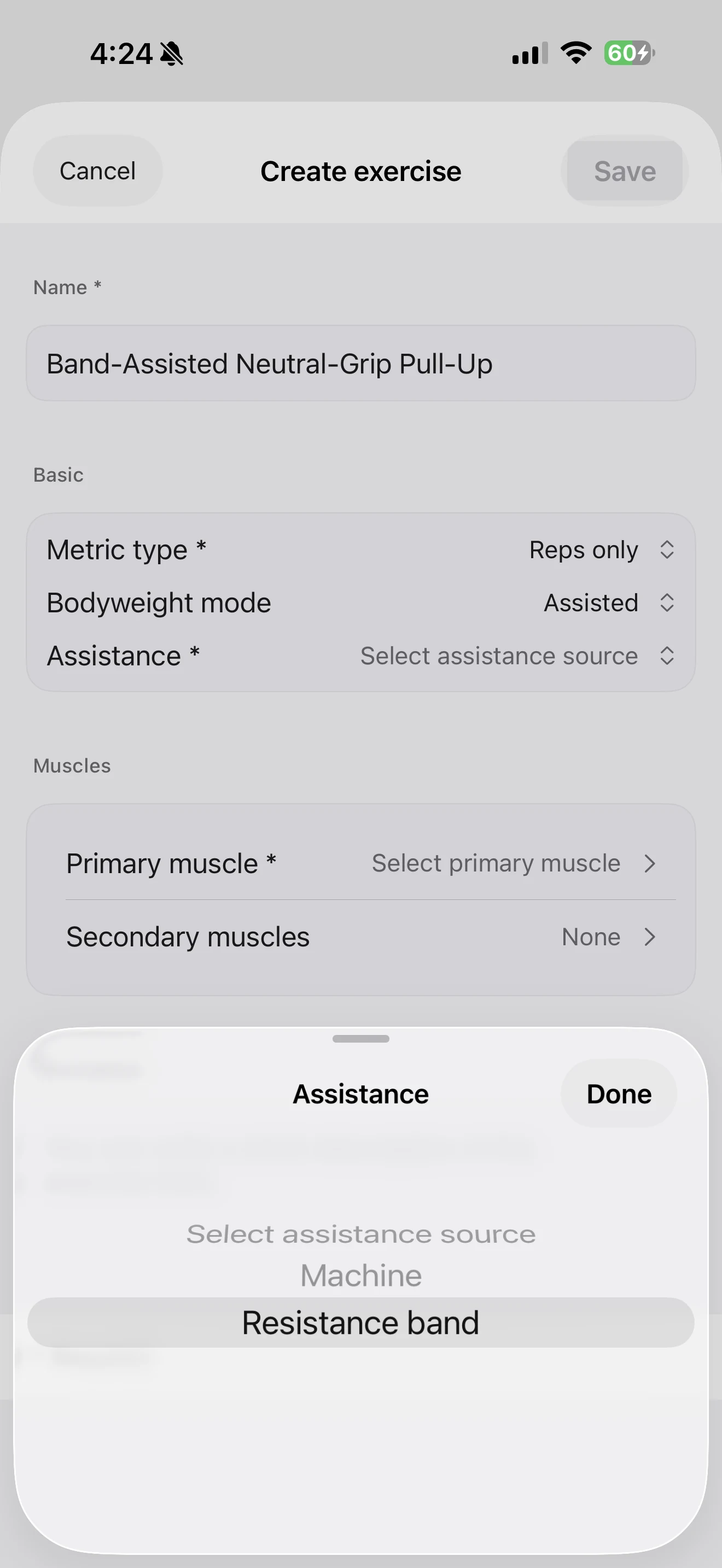
Assisted is for a different situation: a machine or resistance band reduces the bodyweight contribution. It is available for eligible repetitions-based custom exercises — Reps + weight or Reps only — when the assistance is a machine or resistance band.
For example, Band-Assisted Neutral-Grip Pull-Up uses Reps only and a resistance band. Choose Assisted in Bodyweight mode, then select the assistance source. The available assistance sources are Machine and Resistance band.
This is why a band-assisted pull-up should not be represented by an arbitrary Partial percentage. Pick the mode that reflects what you want the log to capture, then let that exercise remain consistent over time.
Find and use the custom exercise in a workout
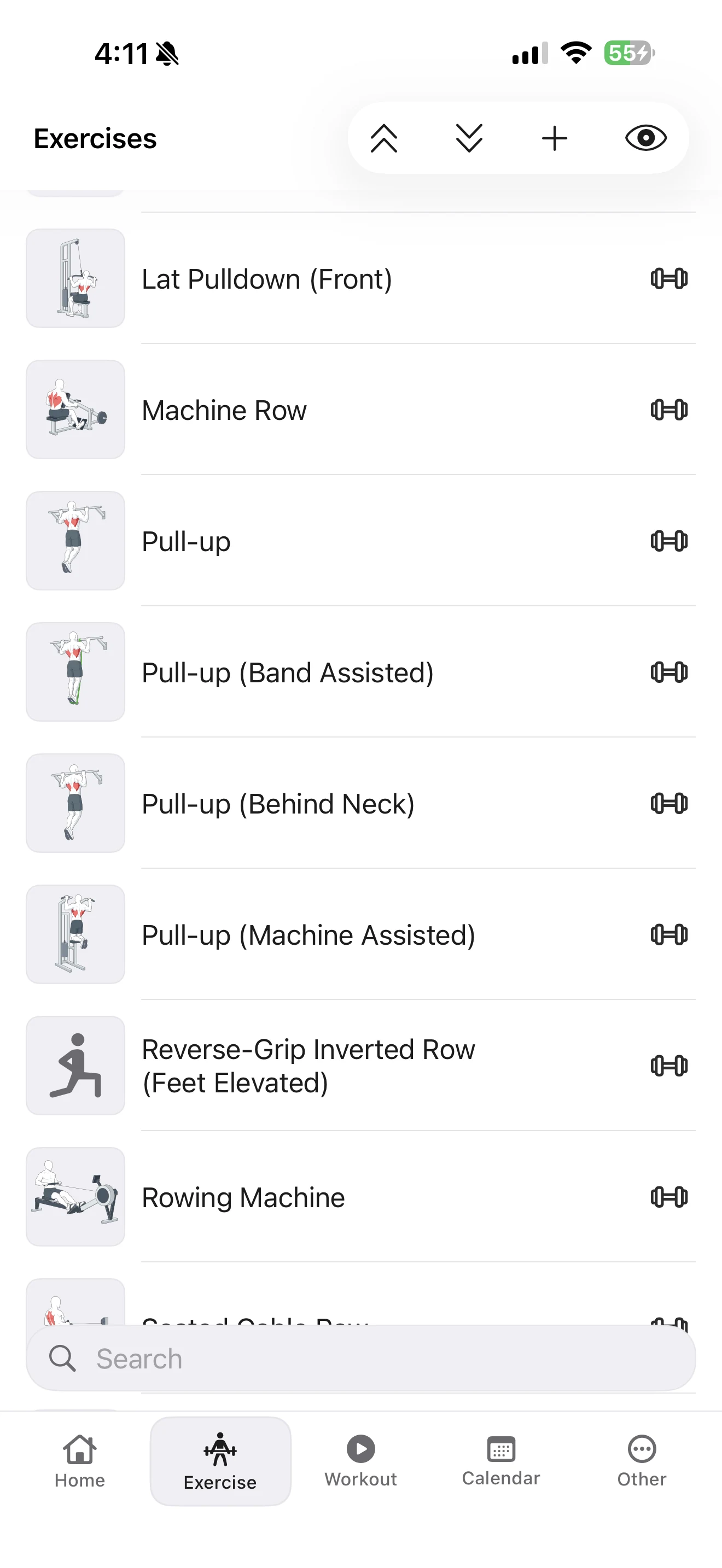
After saving, the custom entry appears in the Exercise library alongside the system exercises. It can be selected when you build or run a workout, then logged according to the metric type you chose.
The custom-exercise setup ends there. For the active-workout flow — starting a session, recording sets, using rest timers, and making corrections — see How to Log a Workout in Fitness Karma. For the wider context of how the library supports a straightforward training record, see Fitness Karma: A Fast Workout Log for Lifters.
Edit or delete it without rewriting your old workouts
Open a saved custom exercise to review its current setup. The edit control lets you change the custom entry; the delete control removes it from the current library.
Deleting a custom exercise is not presented as a recovery workflow. It removes the entry from the current library, but it does not erase the historical performed-exercise records that were already saved. Those records keep the recorded name snapshot and exercise ID, and related personal-record and projection data is recomputed as needed.
Quick setup checklist
Before saving a custom exercise, check that it answers these simple questions:
- Is the name specific enough to recognise the variation later?
- Does the metric type match what you intend to enter for each set?
- Does the bodyweight mode describe the recording you want: none, full, partial, or assisted?
- If it is Partial, have you entered your chosen percentage from 1% to 100%?
- If it is Assisted, have you selected Machine or Resistance band as the assistance source?
- Do the equipment, muscle targets, description, and visibility make the exercise easy to find and understand?
That is all a custom exercise needs to do: describe the movement you actually use in a way that keeps future workouts and history readable. If an exercise is missing from your workout app, create the entry that fits your own setup rather than bending the log around an unrelated exercise.